Fill my jars: log your paycheck and split it on payday in Flowjar
Flowjar never logs your paycheck by itself. On payday, add it as income with Fill my jars on and it is shared across your jars. Here is how, plus side income.
Short answer
Flowjar doesn't add your paycheck for you. On payday, add it as an Income entry and leave Fill my jars on: Flowjar shares the amount across your jars using each jar's Share of each paycheck, and anything not assigned stays in your balance. A payday notification and the Safe to spend widget can remind you to do it.
There's no bank connection in Flowjar, so the app only knows about money you tell it about. That's deliberate: you see the paycheck land, you log what actually arrived, and your jars, Safe to spend and forecast update together. It takes a few seconds once you know where the switch is.
Why the paycheck isn't added automatically
The Paycheck amount you entered during setup (and can change in Settings under Your plan) is a plan, not an entry. Flowjar uses it to project future paydays in the forecast and to estimate spending before you have a week of history. It never turns into income in your balance on its own, because real paychecks vary: overtime, a missed shift, a tax change or a payday that moves.
So until you log today's paycheck, your balance and Safe to spend don't include it. The Next payday date in your plan rolls forward by your pay frequency on its own, so the countdown on Today keeps working either way.
How Flowjar reminds you
Two places nudge you on payday:
- A payday notification. With Bill and payday reminders on in Settings, Flowjar sends It's payday at 9:00 on payday, with Add your paycheck and fill your jars. Tapping it opens Today. Reminders are off until you turn them on; the reminders post covers permissions and bill reminders.
- The Safe to spend widget. The widget counts down the days on its own. If it reaches payday before you open the app, it stops showing an amount: the Home Screen widget says It's payday. Open Flowjar to split your paycheck. and the rectangular Lock Screen widget shows Split your paycheck. See widgets and Live Activity.
Log your paycheck with Fill my jars
Add a paycheck and fill your jars
- Tap + to open the entry editor, then switch the top control from Expense to Income.
- Type the amount that actually landed in your account.
- Check the category. Paycheck is picked by default for income.
- Tap Add a note to open Details. Add a note if you like, check the Date, and make sure Fill my jars is on.
- Tap Done, then Add.
Fill my jars is on by default for new income, and the note row shows a small jars icon while it's on. The switch's own description sums it up: Shares this income across your jars using your split. You can also find Add income by searching for income or paycheck in search.
What the split does
When you add income with Fill my jars on, each jar with a share above 0% gets that percentage of the amount. Jars at 0% are skipped.
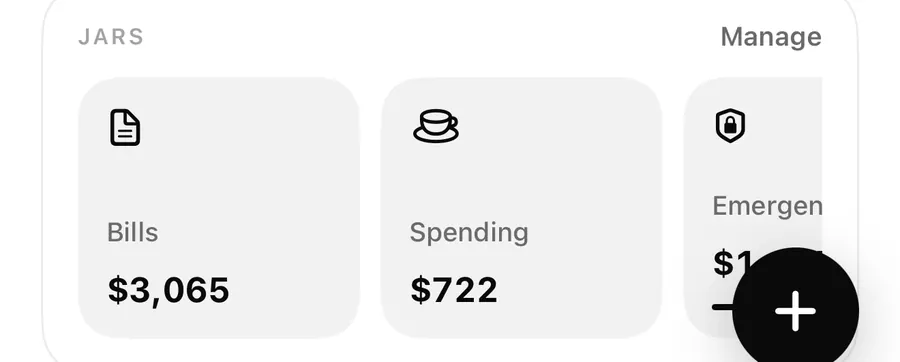
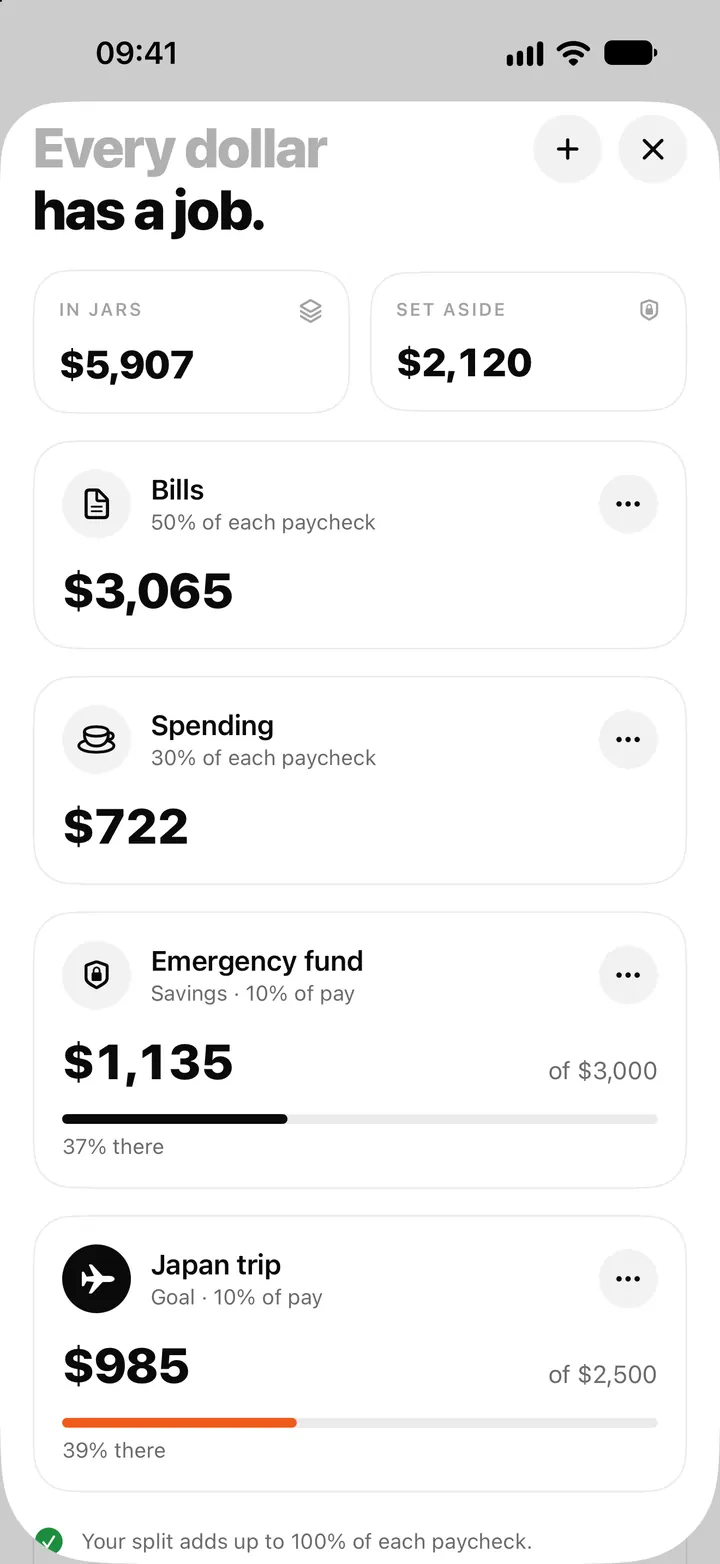
Take the sample plan in the screenshots. Alex logs a $2,450 paycheck. The jars use the 50 / 30 / 20 shares, so:
| Jar | Share | Gets |
|---|---|---|
| Bills | 50% | $1,225 |
| Spending | 30% | $735 |
| Emergency fund (Savings) | 10% | $245 |
| Japan trip (Goal) | 10% | $245 |
Here's what changes on screen:
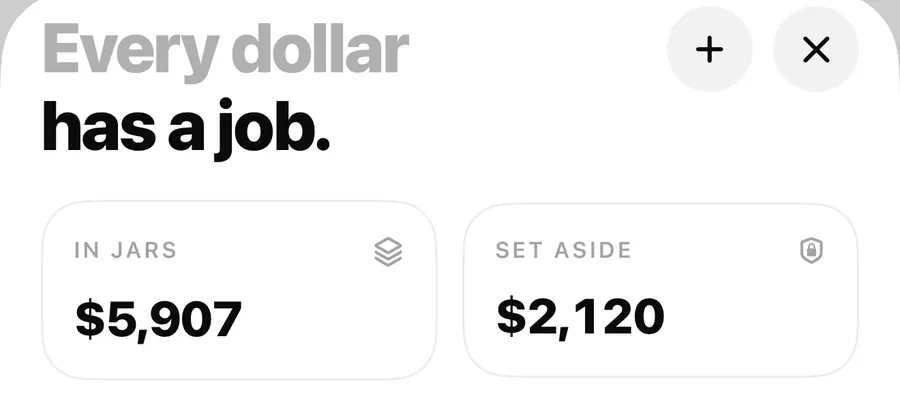
- Balance goes up by the full $2,450. Jars are labels on your balance, so the paycheck is counted once.
- In jars goes up by $2,450, because the split adds up to 100%.
- Set aside goes up by $490, the Savings and Goal shares, and that part is kept out of Safe to spend.
- Safe to spend is worked out again from the new balance, over the days until your next payday.
When the split is under 100%
If your jars add up to, say, 80%, then 80% of the paycheck is shared out and the other 20% stays in your balance with no jar. It is still counted in Safe to spend. The Jars screen tells you your total (Your split adds up to N%. Unassigned money stays in your balance.). Shares are set per jar in 5% steps; see money jars and the paycheck split.
Changing or deleting a split paycheck
Tap the income entry in Activity to edit it. If you change the amount, Flowjar redoes the split with your jars' current shares. Turning Fill my jars off removes what that paycheck put in the jars, and deleting the entry does the same. Your other entries aren't touched.
Side income, refunds and other money in
Not all income is a paycheck. Flowjar has five income categories: Paycheck, Side income, Refund, Gift and Other income. Fill my jars works for any of them, and you decide each time:
- Side income (a freelance job, a sold item): leave Fill my jars on to split it like a paycheck, or turn it off and use Add to jar to send all of it to one goal.
- Refund: often you just want the money back in your balance. Turn Fill my jars off.
- Gift: split it, or put it toward a goal by hand.
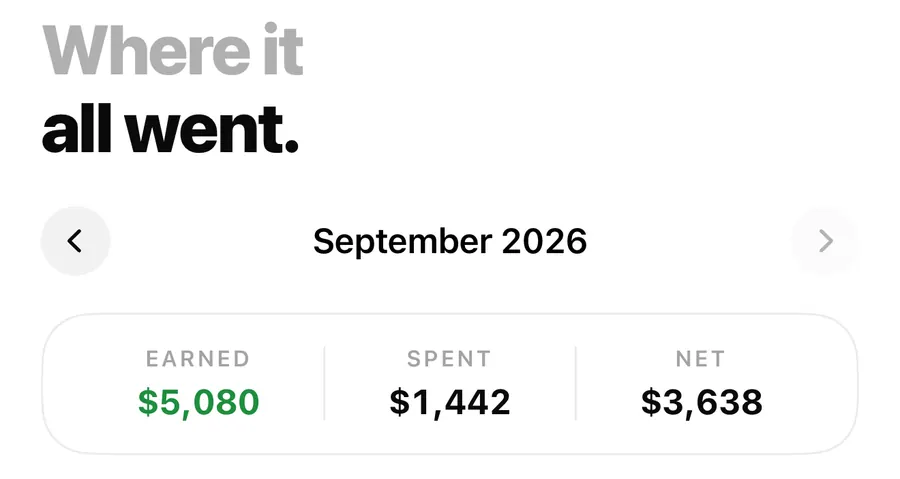
In the sample plan, Alex has an extra $180 entry called Design gig in September. With Fill my jars on, the same 50 / 30 / 10 / 10 shares would put $90 in Bills, $54 in Spending and $18 in each savings jar.
Quick add and Siri fill your jars too
Quick add understands income: type +2450 paycheck or +180 freelance and it's added as income, with the category guessed from your words. Income added this way, or with Siri's Log an expense in Flowjar, is always split across your jars; there's no switch on that path. If you don't want a split, tap More in quick add to open the full editor and turn Fill my jars off.
FAQ
Why didn't my paycheck show up on payday?
Flowjar never adds income automatically. Add it with +, switch to Income, and keep Fill my jars on.
Where is the Fill my jars switch?
In the entry editor, after you switch to Income. Tap Add a note to open Details; the switch is under Date.
What happens to money that isn't assigned to a jar?
It stays in your balance with no jar and counts toward Safe to spend.
Should I split a refund across my jars?
That's up to you. If you turn Fill my jars off for a refund, the money simply returns to your balance with no jar. For more help, see support.
Download Flowjar and give your next paycheck a job the moment it lands.
Keep reading
Money jars in Flowjar: split each paycheck into bills, spending and savings
Flowjar splits each paycheck across jars for bills, spending, savings and goals. Learn the four jar types, how shares work and what each does to Safe to spend.
Read
Bill reminders on iPhone: Flowjar's day-before and payday notifications
Flowjar can remind you at 9:00 the day before each bill is due and on payday. How to turn bill and payday reminders on, set them per bill, and what they do.
Read
Quick add in Flowjar: log an expense in one line, like coffee 4.50
Type coffee 4.50 or +2000 salary into Flowjar quick add and it reads the amount, guesses the category from keywords and adds the entry in one tap on iPhone.
ReadA payday budgeting checklist with Flowjar
Use Flowjar on payday to verify your balance, assign bills, review goals, keep a buffer and check the cash-flow forecast.
Read guide