Quick add in Flowjar: log an expense in one line, like coffee 4.50
Type coffee 4.50 or +2000 salary into Flowjar quick add and it reads the amount, guesses the category from keywords and adds the entry in one tap on iPhone.
Short answer
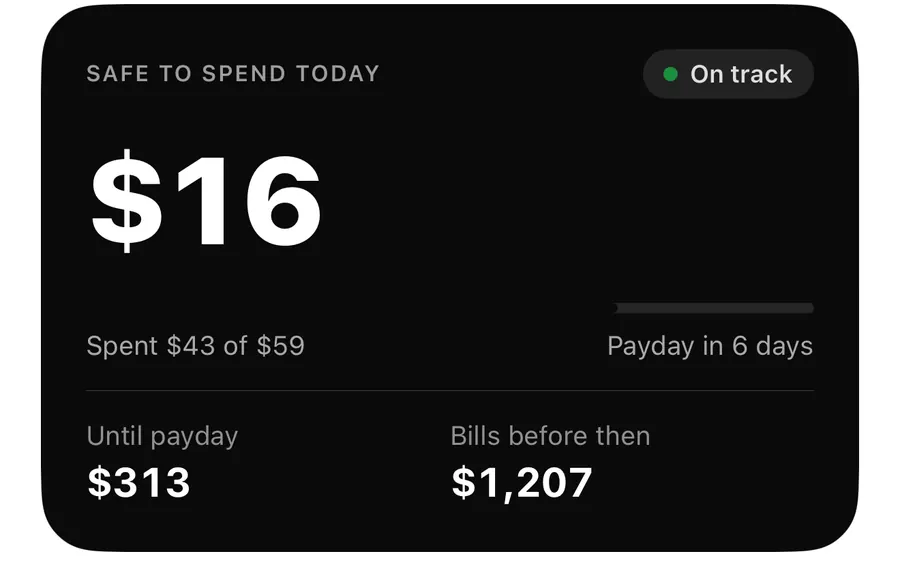
Quick add is a single text box that asks What did you spend?. Type something like coffee 4.50 and Flowjar reads the amount, uses the words to guess a category, and adds the expense when you tap Add. Start with a plus, as in +2000 salary, and it becomes income. It's built for logging a purchase in the few seconds after you pay.
The hardest part of any manual budget is remembering to write things down. Safe to spend is only right if your spending is in the app, so Flowjar makes adding an entry as short as a text message: what it was and how much.
What you can type
The box understands everyday shorthand in any word order. A few examples, in US dollars:
| You type | Flowjar adds |
|---|---|
| coffee 4.50 | $4.50 expense, note Coffee, category Food & drink |
| $ 12 parking | $12 expense, note Parking, category Transport |
| 2 coffees $9.50 | $9.50 expense (the number with a $ wins over the count), note 2 coffees |
| refund from Amazon 25.99 | $25.99 income, category Refund |
| +2000 salary | $2,000 income, category Paycheck |
| + 300 tips | $300 income, category Side income |
A k after a number means thousands, so 45k is 45,000. That's mostly useful in currencies with large amounts, such as Vietnamese dong, where Flowjar also understands 1tr2 for 1.2 million.
As you type, a preview under the box shows the amount it found, or Type what it was and how much. if it hasn't found one yet. The Add button changes to Add income when the line reads as income, so you can see the difference before saving.
How income is spotted
An entry becomes income if the amount starts with +, or if the line contains income or received. Words like salary or refund also mark it as income on their own, so refund from Amazon 25.99 doesn't need a plus.
How the category is guessed
Flowjar matches the words you type against a built-in keyword list in English and Vietnamese. Lunch, latte or starbucks point to Food & drink; uber, gas or parking to Transport; netflix or spotify to Subscriptions; pharmacy to Health. It is plain keyword matching on your iPhone, not AI, so it only knows words on its list.
If nothing matches, the entry goes to Other (or Other income). Either way, the category button next to the preview shows the guess. Tap it to pick a different one from the 13 expense or 5 income categories before you add. You can't create your own categories.
What happens when you tap Add
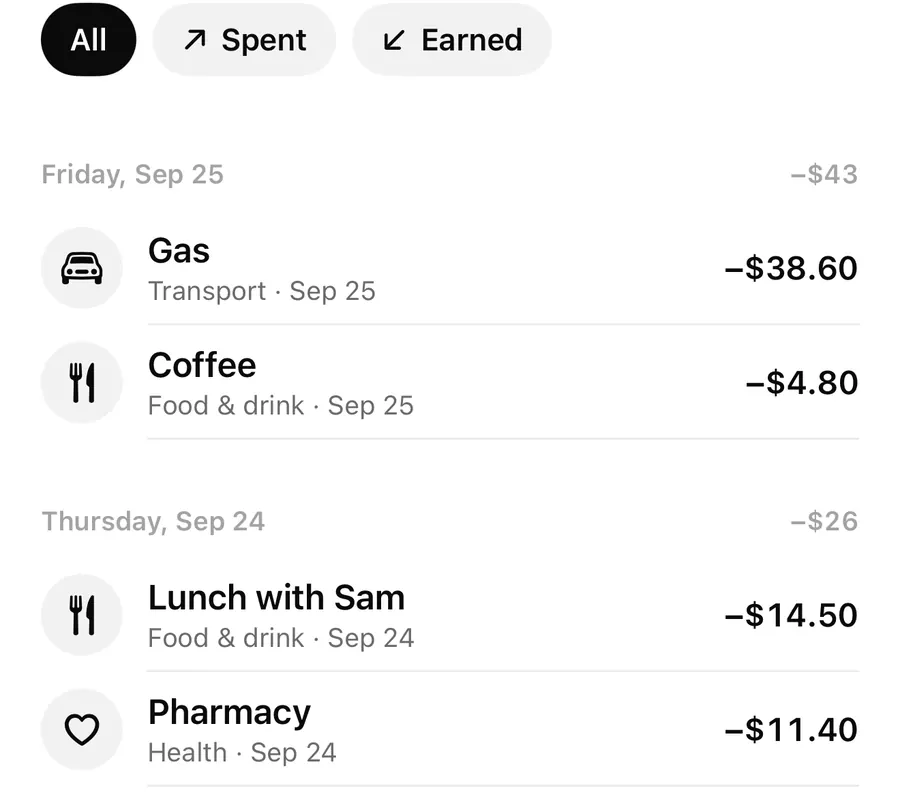
A quick add entry is dated today. An expense comes out of your Spending jar, and an income entry is shared across your jars by your split, the same as Fill my jars in the full editor. Safe to spend, the widget and Activity update straight away.
If you need more than one line, tap More. The full entry editor opens with what you typed already filled in. Tap Scan to read the total from a receipt instead (see receipt scanning).
Log a purchase with quick add
- Open quick add from a widget, Back Tap, Control Center, Siri or Search.
- Type what you bought and the amount, for example lunch 12.50.
- Check the amount in the preview and the guessed category.
- Tap the category to change it if needed.
- Tap Add. The sheet closes and the entry is saved.
The full entry editor
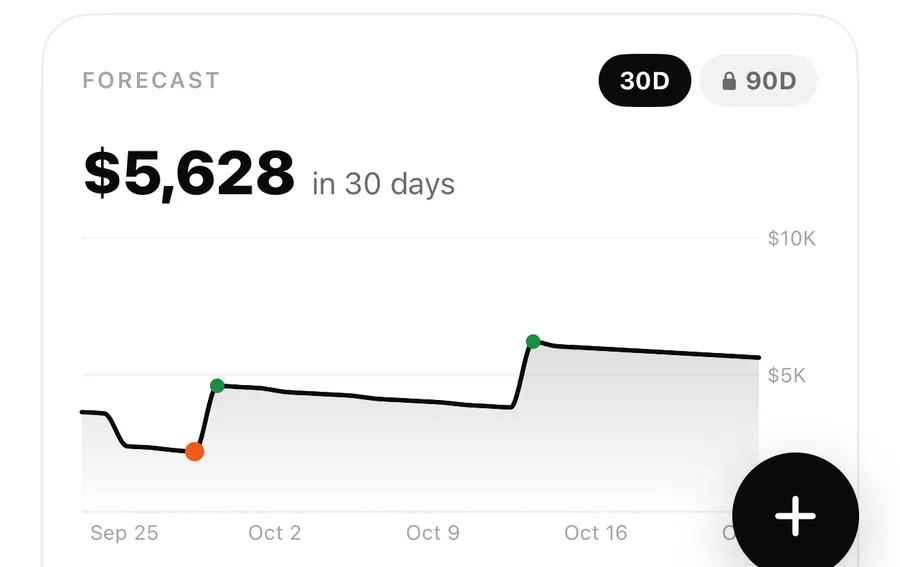
The round + button on Today and Activity opens the full editor rather than quick add. It's the better choice when you want a past or future date or a specific jar:
- Expense / Income switch at the top, then a keypad for the amount.
- Category chips under the amount.
- Add a note opens Details with Note, Date, and either Fill my jars (income) or Paid from jar (expense).
- Date can be any past day, or up to 365 days ahead.
Where to open quick add
Quick add is designed to be one gesture away, mostly from outside the app:
- Back Tap: Flowjar shows a short guide during setup and in Settings under Back Tap, widgets and Siri. You add Flowjar's Quick add expense shortcut in the Shortcuts app, then pick it under Settings › Accessibility › Touch › Back Tap. iOS doesn't let apps set this for you.
- Widgets and Live Activity: the Add button on the medium Safe to spend widget, a tap on the circular or rectangular Lock Screen widget, or the Add button in the optional Live Activity. See widgets and Live Activity.
- Control Center and Action button on iOS 18 and later, with the Quick add control.
- Siri: say Quick add in Flowjar. See Siri and Shortcuts.
- Inside the app: search for Quick add, or tap Try quick add on the Back Tap card in Settings.
FAQ
Does quick add use AI to pick the category?
No. It matches your words against a built-in keyword list on your iPhone. If nothing matches, it uses Other, and you can change it before adding.
Can I add income with quick add?
Yes. Start the amount with a plus, as in +2000 salary, or use words like income, received, salary or refund. The button changes to Add income, and the money is shared across your jars by your split.
How do I add an expense from yesterday?
Use the + button, open Add a note, and change Date. You can also tap an empty past day in the Activity calendar.
Can I fix a quick add entry afterwards?
Yes. Tap it in Activity to edit the amount, category, note, date or jar. More answers are in the FAQ.
Download Flowjar and log your next coffee before the receipt hits the bin.
Keep reading
Scan a receipt in Flowjar: the total is read on your iPhone
Flowjar reads a receipt's total, shop name and recent date with on-device text recognition, fills in the expense for you to check, and doesn't save the photo.
ReadFlowjar with Siri, Shortcuts and Control Center: log spending hands-free
Ask Siri to log an expense without opening Flowjar, check what is safe to spend, and put Quick add or Scan receipt in Control Center or on the Action button.
Read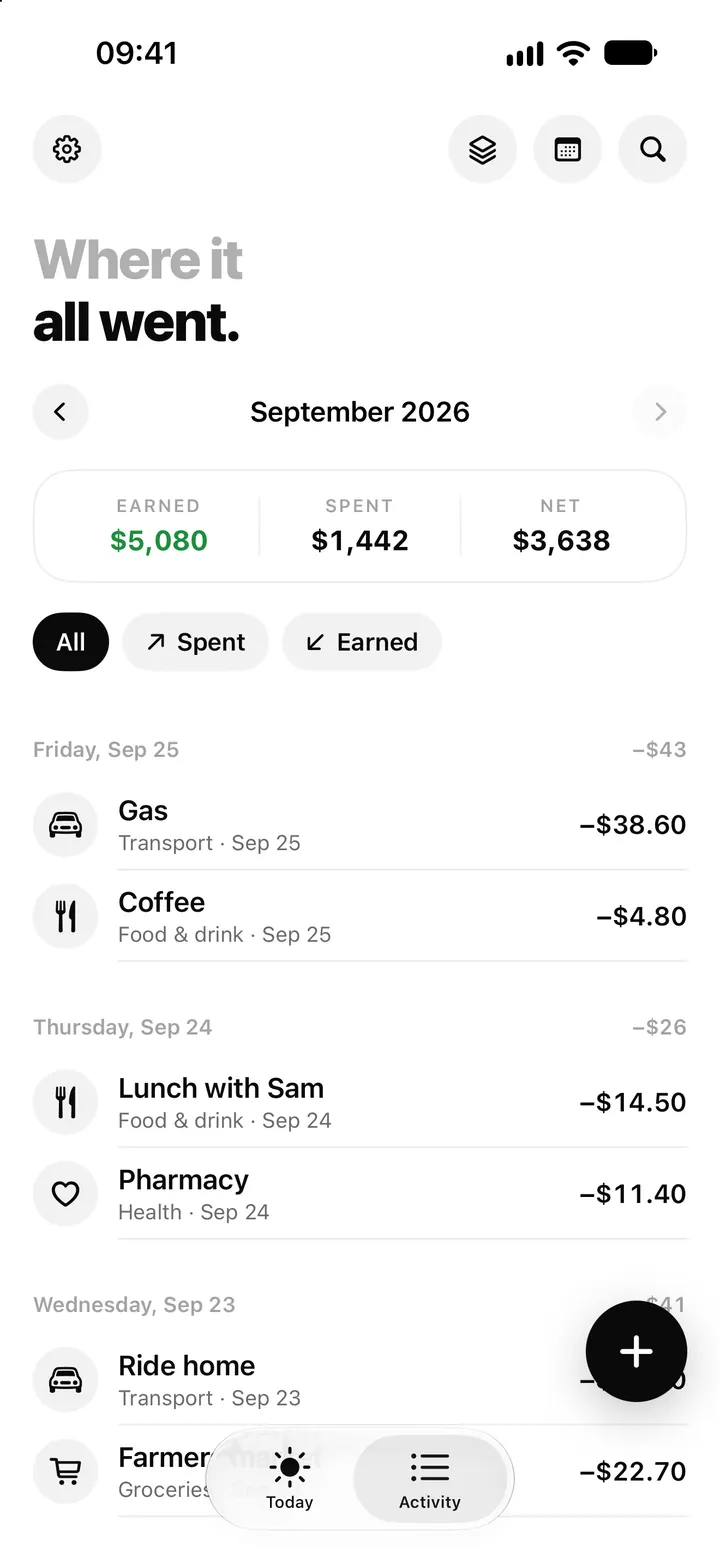
Flowjar Activity: list, calendar and back-filling a missed day
Flowjar Activity shows every entry by month as a list or a calendar, with Earned, Spent and Net. Tap to edit, swipe to delete, or tap an empty day to fill it.
ReadBuild a Habit of Recording Spending Right After You Buy
A two-minute routine to record expenses, check categories, keep receipts, and update Flowjar without making money tracking overwhelming.
Read guide