Search in Flowjar: find any entry, jar, bill or money tool in seconds
Flowjar search looks through your notes, categories, amounts, jars, bills and every app feature at once, and History keeps what you opened lately on the iPhone.
Short answer
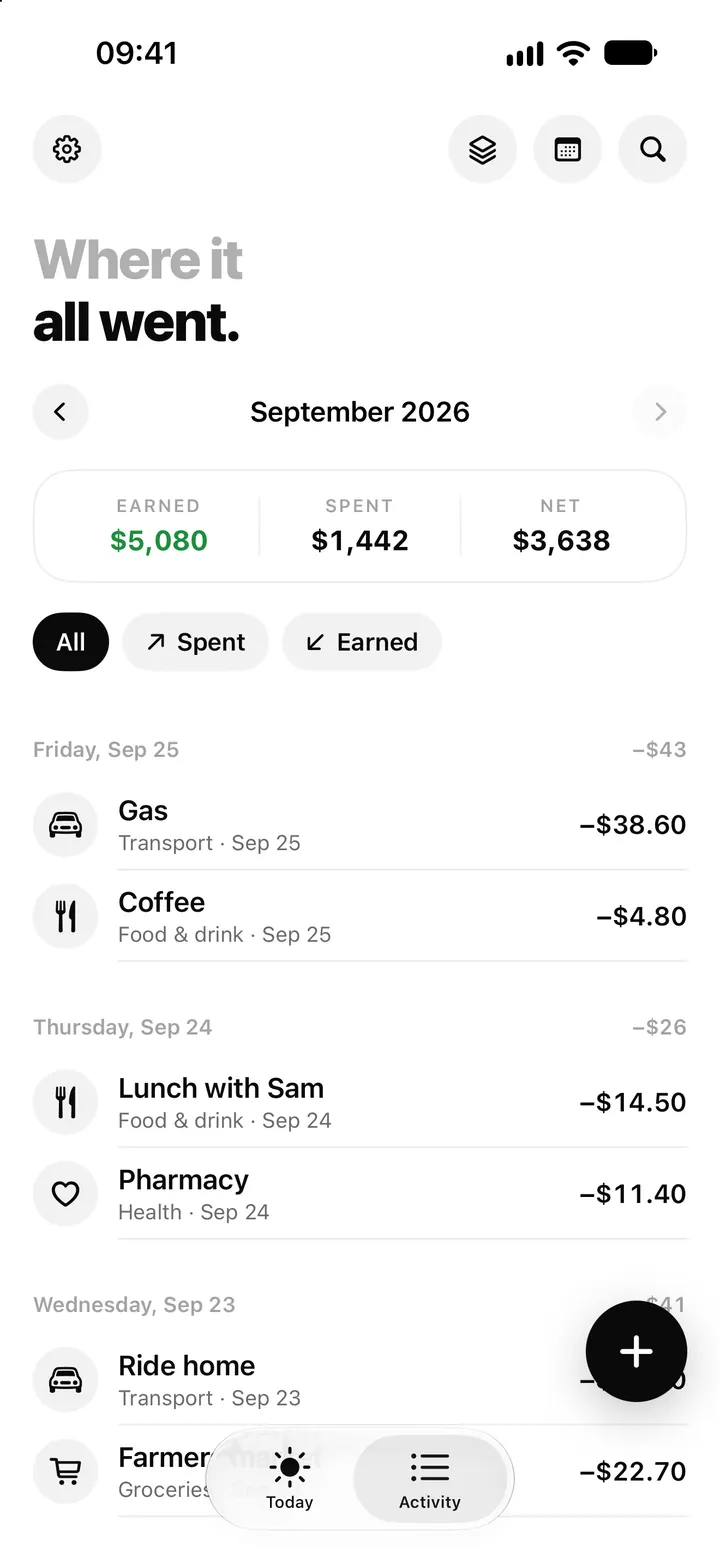
Tap the magnifying glass at the top of Today or Activity to open Search. One box looks through the notes and categories of every entry you have ever added, the digits of their amounts, your jar and bill names, and every Flowjar feature and money tool. Tap a result to open it. A History list keeps what you opened or changed lately, on your iPhone only.
The Activity list is organised by month, which is right for a monthly review and wrong for a quick question like when did I last pay the plumber? or how much was that concert ticket? Flowjar has a search screen for exactly that, and it also doubles as a shortcut to any screen in the app.
What Search looks through
The search field's prompt says it plainly: Features, tools, entries, jars, bills. As you type, results appear in up to four groups.
| Group | What matches | What a result shows |
|---|---|---|
| Features | Feature names, their short descriptions and extra keywords, such as mortgage, csv or face id | The feature, ready to open |
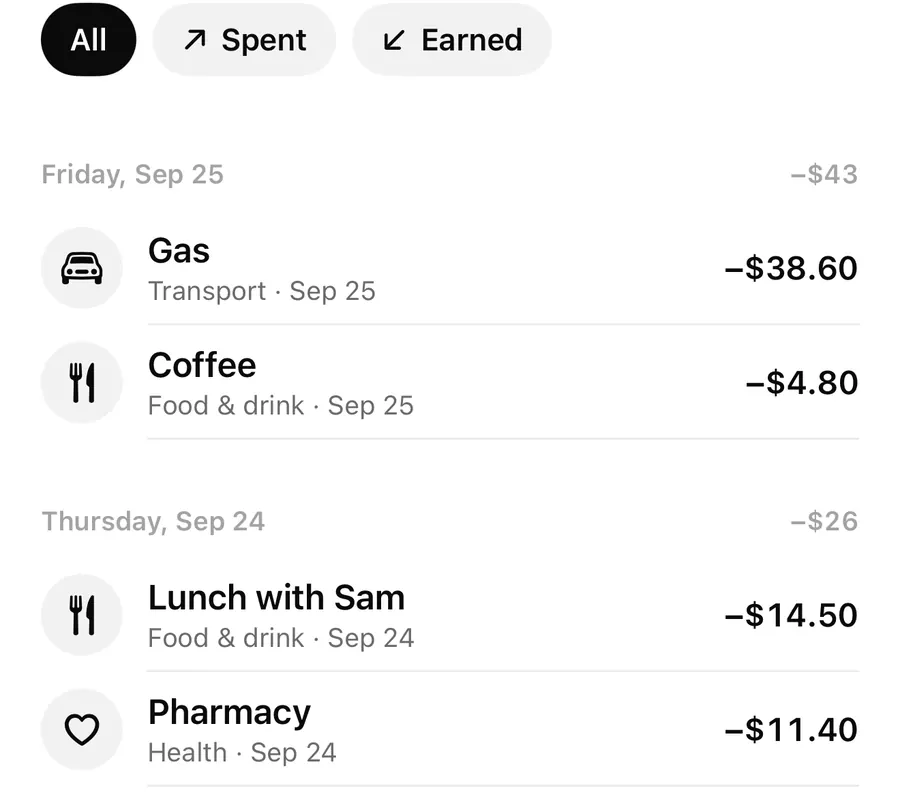
| Entries | The note you wrote, the category name, or the digits of the amount | Note (or category), date and signed amount |
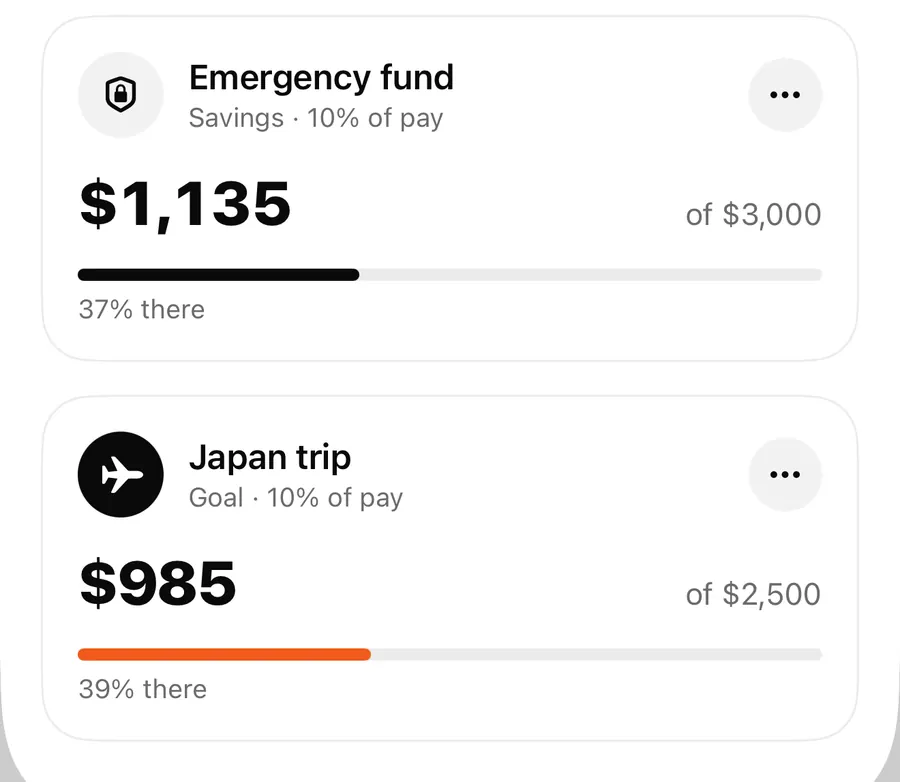
| Jars | Jar names, like Japan trip | Jar name and its type |
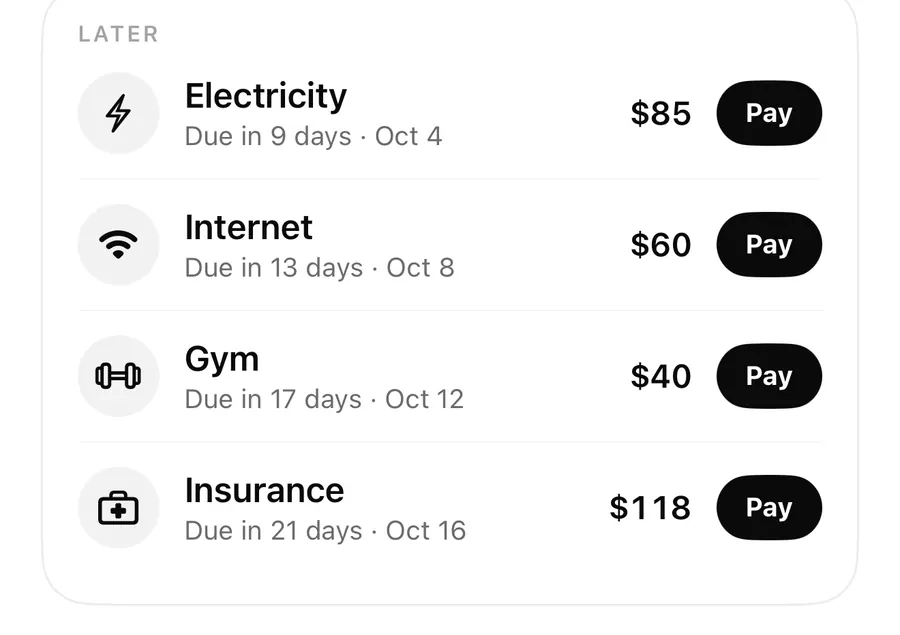
| Bills | Bill names, like Rent or Gym | Bill name and amount |
Matching ignores upper and lower case, and it covers every entry you have stored, not just the month you have open in Activity. The first 25 matching entries are listed, newest first.
Searching by amount
If you type only digits, Flowjar matches them against the digits of each amount. Typing 12 finds an entry of $12.50 and also one of $112, so a short number can bring up a few extra rows. Add a word to narrow it down, or type the amount exactly as you remember it, such as 14.50.
Searching by category
Category names match in the language the app is set to. Typing health lists every entry in the Health category, which is a fast way to gather all pharmacy and doctor spending without scrolling month by month. For totals by category over a month, the Stats view in month stats is the better tool.
Before you type: Suggested, Recent and Money tools
An empty search screen is not blank. It shows three things you can tap straight away:
- Suggested: Quick add, Scan a receipt, Jars, Bills, Debt payoff and iPhone shortcuts.
- Recent: the last five things from your History, with See all to open the full list.
- Money tools: a row with all nine calculators, from Loan & EMI to Split a bill, plus See all.
That makes Search the quickest route to screens that sit a few taps deep, like How Flowjar works or a calculator. The money tools post covers what each calculator does.
Find an old expense and fix it
- Tap the magnifying glass at the top of Today or Activity.
- Type a word from the note, like plumber, or the amount, like 85.
- Look under Entries for the right date and amount.
- Tap the entry to open it in the entry editor.
- Change the amount, category, note or date, then save.
What happens when you tap a result
- An entry opens in the entry editor, where you can change it. To delete an entry, swipe it in the Activity list; see the Activity list and calendar.
- A jar opens the Jars screen, and a bill opens the Bills screen, where you can edit or pay it.
- A feature opens that part of the app, and a money tool opens the calculator inside the search screen, so the back button brings you back to your results.
History: what you opened lately
History is a list of the places you have been and the things you changed: features and money tools you opened, and entries, jars and bills you saved. It is grouped by day, with Today, Yesterday and then dates, and each row shows what it was and how long ago.
You can reach it from Recent in Search, from Settings, or by searching for history. Swipe a row to Remove it, or tap Clear to empty the list. Clearing History doesn't touch your money data: the confirmation says your entries, jars and bills stay as they are.
History keeps the most recent 60 items. If something appears twice, Flowjar moves it to the top instead of listing it again. A row for an entry, jar or bill keeps the name it had at the time, so the list still reads well after you delete something.
FAQ
Can I search entries from previous months?
Yes. Search looks through every entry stored in the app, not only the month open in Activity. Results are listed newest first.
Why does searching for a number show unrelated entries?
Amounts are matched by their digits, so 12 also finds $112 and $12.50. Add a word from the note or type the full amount to narrow it down.
Does clearing History delete my data?
No. Clearing History only empties the list of recent views. Entries, jars and bills stay exactly as they are.
Can I find Flowjar entries from iPhone Spotlight?
No. Entries are only searchable inside Flowjar. Spotlight can show Flowjar's shortcuts, like quick add, but not your entries.
Download Flowjar and find any expense in a couple of taps.
Keep reading
Flowjar Activity: list, calendar and back-filling a missed day
Flowjar Activity shows every entry by month as a list or a calendar, with Earned, Spent and Net. Tap to edit, swipe to delete, or tap an empty day to fill it.
Read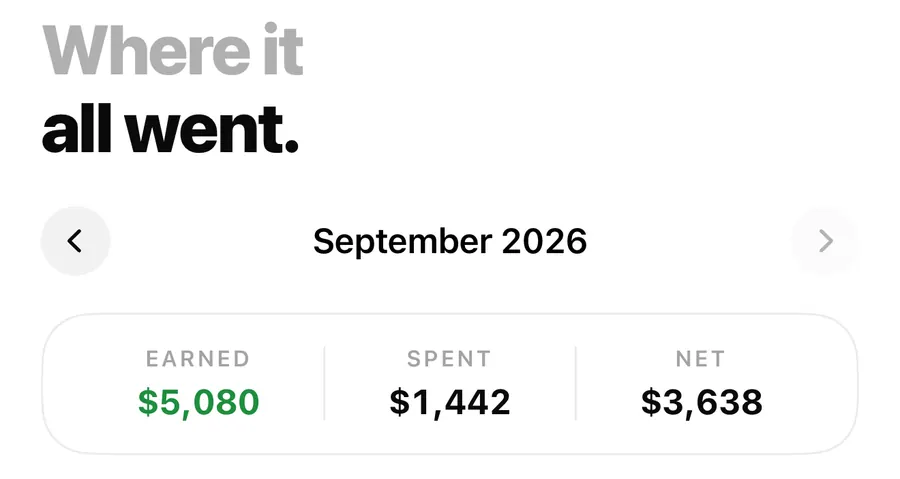
Flowjar month stats: spending by category, biggest day and no-spend days
Flowjar's Stats view breaks each month into spending and income by category, then shows your daily average, your biggest day and how many no-spend days you had.
ReadFlowjar money tools: 9 free loan, debt and savings calculators on iPhone
Flowjar includes nine free calculators for loans, mortgages, car loans, debt payoff, savings goals, compound interest, budget splits and shared trip costs.
ReadHow to review a Flowjar budget after one month
Learn how to compare a Flowjar plan with real income, bills, goals and forecast assumptions after one month.
Read guide