Scan a receipt in Flowjar: the total is read on your iPhone
Flowjar reads a receipt's total, shop name and recent date with on-device text recognition, fills in the expense for you to check, and doesn't save the photo.
Short answer
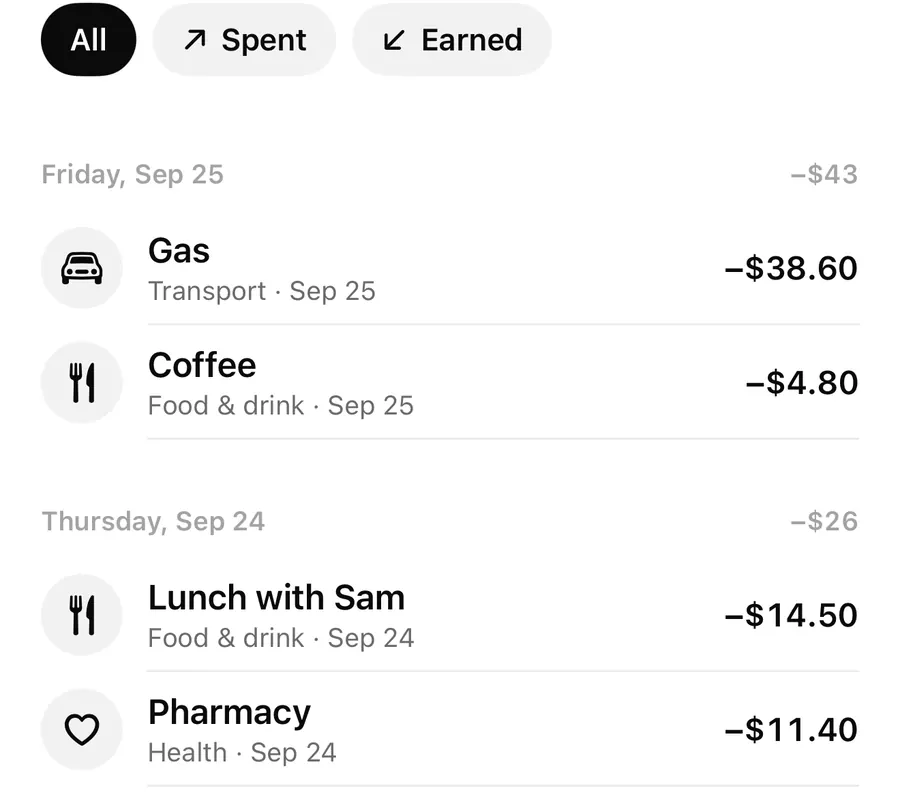
When you add an expense in Flowjar, tap the scan button and choose Scan with camera or Choose a photo. Flowjar reads the text on your iPhone, finds the total, and fills in the amount, a note with the shop name, a category guess and, if it's recent, the date. You check it and tap Add. The photo isn't saved or uploaded.
Some purchases are easier to scan than to type: a long grocery bill, a restaurant check with tax and tip, or a receipt you found in your pocket the next morning. Flowjar turns the receipt into a filled-in expense, and you stay in control of what gets saved.
How to scan a receipt
The scan button (a small document icon) sits at the top of the entry editor, next to the close button, whenever Expense is selected. It isn't shown for income.
Scan a receipt into an expense
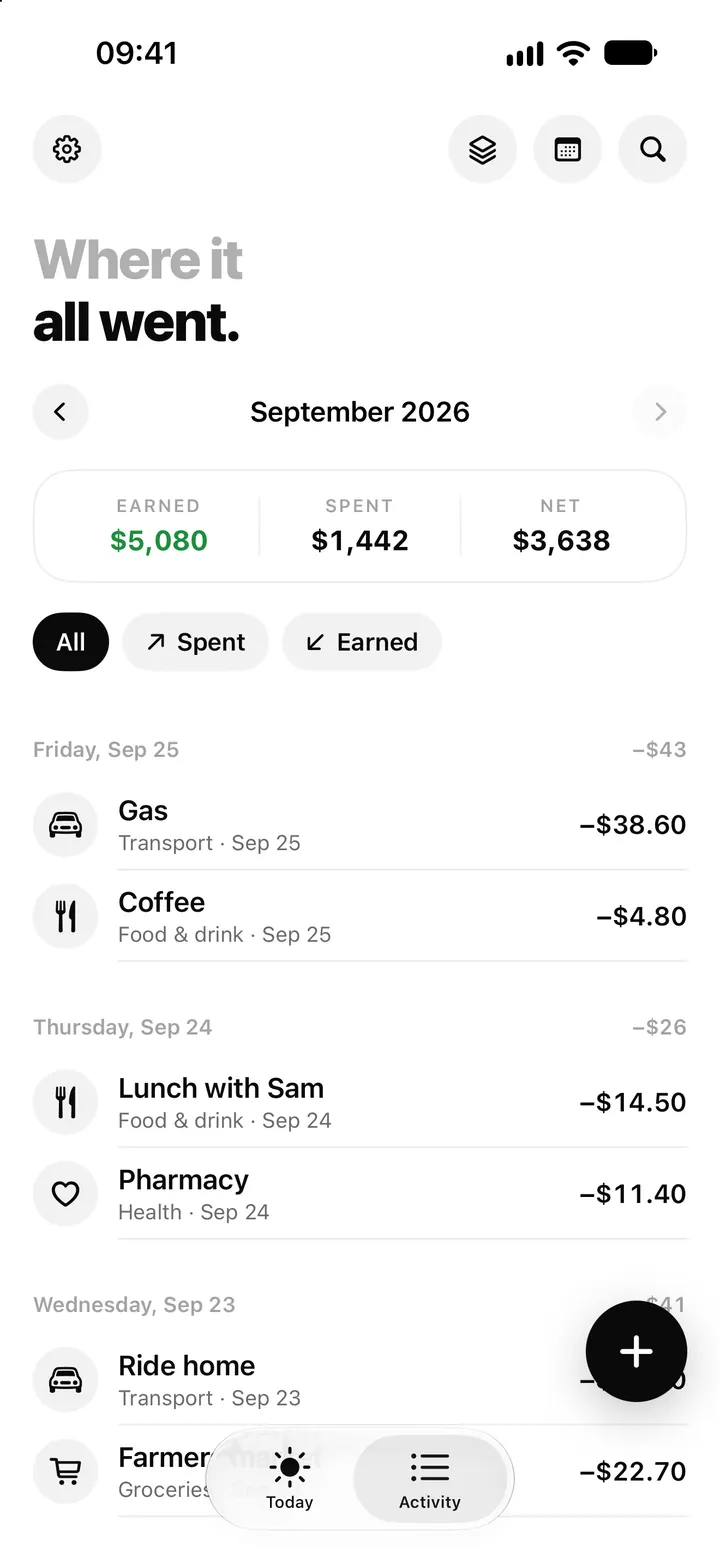
- Tap the round + button on Today or Activity to add an expense.
- Tap the scan button at the top and choose Scan with camera or Choose a photo.
- With the camera, hold the receipt flat. The iOS document camera finds the edges and straightens the page; take the shot and tap Save.
- Wait for Reading your receipt… to finish.
- Check the amount, category, note and date, then tap Add.
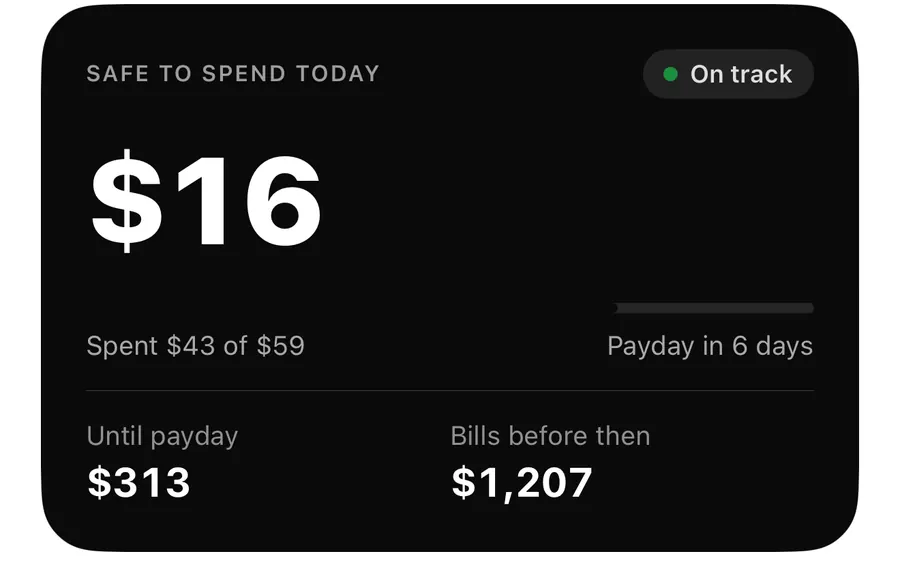
You can also start from quick add (tap Scan), from the Scan button on the medium Safe to spend widget or the Live Activity, from the Scan receipt control in Control Center on iOS 18 and later, or by asking Siri Scan a receipt in Flowjar. Each of these opens the editor with the camera ready.
What Flowjar reads from the receipt
Flowjar uses Apple's on-device text recognition to read the lines of the receipt, then looks for four things:
- The total. It looks for lines like Grand total, Amount due, Balance due or Total, and skips lines such as Subtotal, Tip, Discount, Cash, Change and plain tax lines. If no total line is found, it falls back to the largest amount that isn't cash handed over or change.
- The shop. The shop name near the top goes into the note, if you haven't typed a note already.
- The category. It's guessed from the shop name or the receipt's words, using the same keyword list as quick add. A receipt from a supermarket would usually land in Groceries.
- The date. A printed date is used only if it's within the last 60 days and not in the future. Otherwise the entry keeps today's date, which you can change under Add a note › Date.
Check before you add
After reading, a short message appears under the amount:
| Message | What it means |
|---|---|
| Filled from your receipt. Check the amount before adding. | A total was found and filled in. |
| Couldn't find a total. Type the amount below. | The text was read, but no total was clear. Other fields may still be filled. |
| Couldn't read that photo. Try again in brighter light. | No text could be read. |
Nothing is saved until you tap Add. Receipts can be faded, crumpled or printed in odd layouts, so a quick look at the amount is part of the process, not an extra step. If the total includes a tip you added by hand on the slip, type the final amount yourself.
Once added, the expense works like any other: it comes out of your Spending jar unless you pick another under Paid from jar, and Safe to spend updates straight away.
What happens to the photo
Because the photo isn't kept, Flowjar is not a place to store receipts for returns, warranties or expense claims. Keep the paper or your own photo for that.
Tips for a clean read
- Lay the receipt flat on a dark, plain surface in good light.
- Get the whole bottom of the receipt in, where the total usually is.
- For a long receipt, make sure the total line is sharp, even if the top is cut off.
- If the camera gives you trouble, take a normal photo first and use Choose a photo.
FAQ
Does Flowjar upload my receipt to read it?
No. The text is read on your iPhone, and the photo isn't saved or uploaded.
Why didn't it find the total?
The total line may be blurred, cut off or worded unusually. Flowjar tells you with Couldn't find a total, and you type the amount yourself. A sharper, flatter shot usually helps.
Can I scan a receipt from my photo library?
Yes. Choose Choose a photo from the scan button to pick an existing image.
Why is the date today instead of the receipt date?
Flowjar only uses a printed date from the last 60 days, because older-looking dates are easy to misread. You can set the date by hand in Details. For other questions, see the support page.
Download Flowjar and turn your next receipt into an entry in seconds.
Keep reading
Quick add in Flowjar: log an expense in one line, like coffee 4.50
Type coffee 4.50 or +2000 salary into Flowjar quick add and it reads the amount, guesses the category from keywords and adds the entry in one tap on iPhone.
ReadFlowjar privacy: on-device data, Face ID lock and Erase all data
Flowjar keeps your entries, jars and bills on your iPhone with no account or bank login. See how Face ID lock, anonymous usage and Erase all data work.
ReadFlowjar widgets and Live Activity: Safe to spend on your Lock Screen
Put today's Safe to spend amount on the Home Screen, Lock Screen and Dynamic Island with Flowjar's widget and Live Activity, plus Add and Scan buttons.
ReadWhy record spending immediately after a purchase?
Learn why recording spending soon after a purchase keeps Flowjar forecasts, bills and safe-to-spend guidance closer to reality.
Read guide