Flowjar in your language and currency: 12 languages, iPad layout and appearance
Flowjar speaks 12 languages, including Arabic right to left, uses one currency per plan and has an iPad sidebar layout. Here is how to set it up your way.
Short answer
Flowjar runs in 12 languages, and you can switch between them inside the app at any time, including Arabic, which lays the app out right to left. Each plan uses one currency that you pick during setup; it can't be changed later and there is no multi-currency support. On iPad with iOS 18 or later, Flowjar uses a sidebar with Today, Activity, Jars and Bills. You can also pick an accent color and an alternate app icon.
A budget is easier to keep up when every label reads naturally and every amount looks like the money in your wallet. Flowjar asks for your language and currency in the first minute of setup and uses them everywhere after that.
12 languages, switchable in the app
Flowjar is available in:
| Language | Shown as |
|---|---|
| English | English |
| Spanish | Español |
| French | Français |
| Indonesian | Bahasa Indonesia |
| Vietnamese | Tiếng Việt |
| Arabic | العربية |
| Hindi | हिन्दी |
| Thai | ไทย |
| Japanese | 日本語 |
| Korean | 한국어 |
| Simplified Chinese | 简体中文 |
| Traditional Chinese | 繁體中文 |
Setup starts with Choose your language. Your iPhone's language is marked Device language, and the note under the list says it's used everywhere and can be changed later in Settings.
To switch later, open Settings > Language and tap a name. Each language is listed in its own script, with its name in your current language underneath. The app redraws in the new language right away. As the footnote in Settings says, a few iPhone system labels catch up the next time you open Flowjar. Flowjar's language choice uses the same setting as iOS's per-app language, so the two always agree.
Arabic, right to left
When you choose Arabic, the whole layout flips to right to left: navigation, cards and lists read in Arabic order. Numbers and amounts are formatted for the language you're using.
One currency per plan
The second setup step asks Which currency do you use? Under Suggested you see US dollars (Default), the currency of your region (Your region) and the one usually used with your app language (Your language). Below that, More currencies lists 23 common ones, from EUR, GBP and JPY to VND, INR, BRL and CHF.
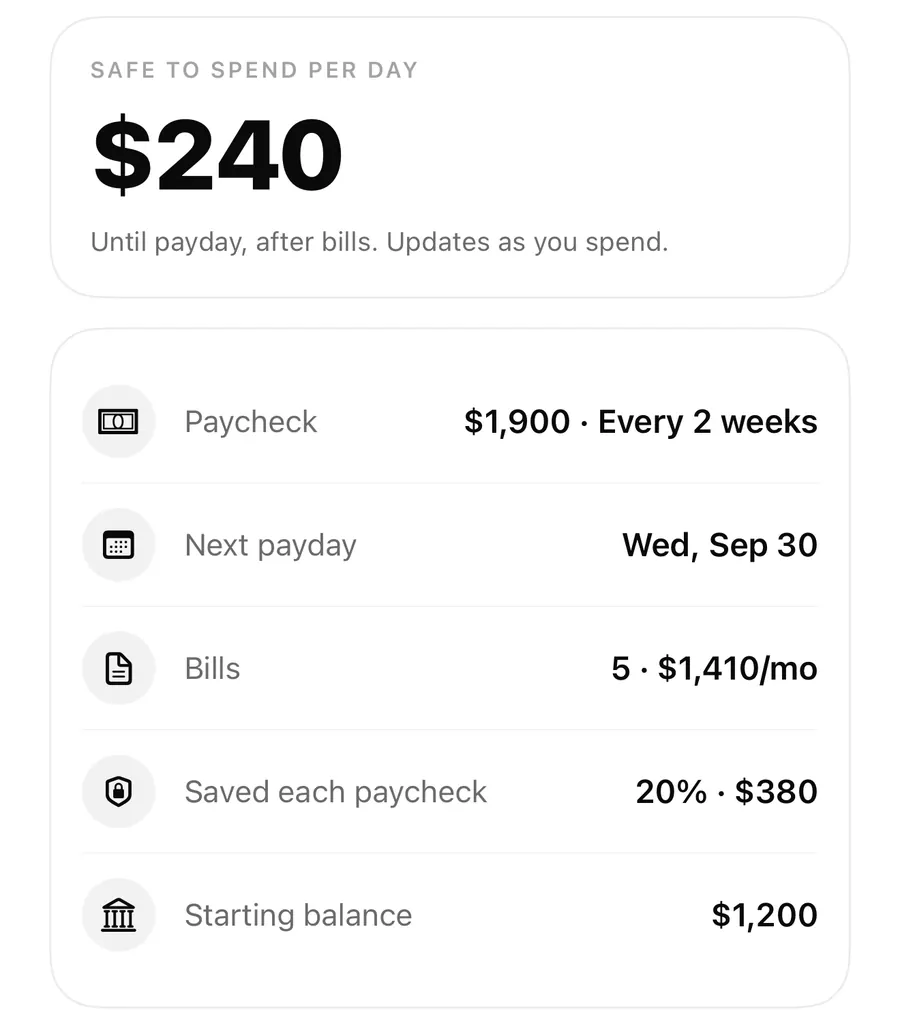
Every amount in Flowjar then uses that currency: Safe to spend, jars, bills, the forecast and the money tools.
Currencies without decimals
Some currencies, like the Japanese yen, Korean won and Vietnamese dong, have no cents. Flowjar knows this and shows those amounts as whole numbers. Amounts are stored as whole units of the smallest denomination, so there is no rounding drift over time. Quick add also understands shorthand such as 45k, which helps with currencies that use large numbers.
Why the currency can't change later
Once setup is done, Settings > Your plan shows the currency as read-only. Flowjar doesn't convert amounts, so switching currency would make every entry wrong. If you really need a different currency, the only way is to start again with Erase all data, covered in the privacy and data post.
Flowjar on iPad
Flowjar runs on iPad as well as iPhone. On iPad with iOS 18 or later, it lists Today, Activity, Jars and Bills in a sidebar, and the sidebar button folds it into a tab bar at the top when you want more room. On iPad you can use any orientation; on iPhone, Flowjar stays in portrait.
Your data is stored on each device separately. Flowjar has no iCloud or multi-device sync, so a plan on your iPad is a different plan from the one on your iPhone.
Tabs on iPhone
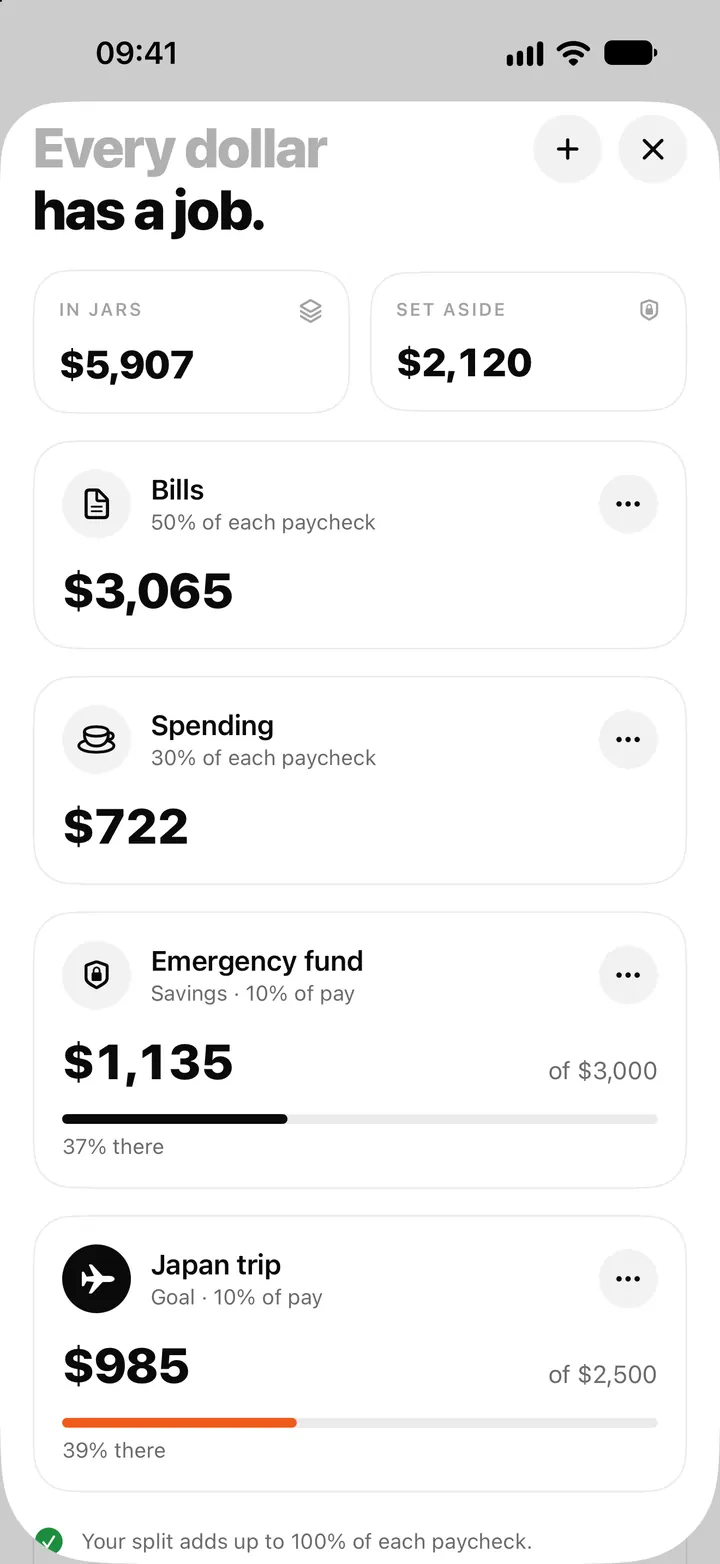
On iPhone, Flowjar starts with two tabs, Today and Activity. Jars and Bills open as sheets from the buttons at the top of the screen. If you visit them often, turn on Settings > Layout > Show all 4 tabs and they get their own tabs.
Make Flowjar yours
- Open Settings from the gear button.
- Tap Language and pick the language you want.
- Under Appearance, choose an accent color and an app icon.
- On iPhone, turn on Show all 4 tabs under Layout if you want Jars and Bills as tabs.
- Under Your plan, check the currency shown is the one you use.
Accent color and app icon
Appearance in Settings has two choices:
- Accent color: Orange (the default), Blue, Indigo, Violet, Pink, Teal or Graphite. The accent marks goals, warnings and highlights, and widgets and the Live Activity use it too. Main buttons keep their usual ink color.
- App icon: Default, Dark, Light or Orange.
Flowjar follows your iPhone's Light or Dark appearance on its own.
FAQ
Can I change Flowjar's language without changing my iPhone's language?
Yes. Pick a language in Settings > Language. It only applies to Flowjar.
Can I track two currencies in Flowjar?
No. Each plan has one currency and amounts aren't converted. Enter spending in your plan's currency.
I picked the wrong currency during setup. What can I do?
The currency can't be edited after setup. Use Erase all data in Settings to start again and pick the right one. That deletes all entries, jars and bills, so do it early.
Does my iPhone plan show up on my iPad?
No. Flowjar stores data on each device and has no sync, so each device has its own plan.
Download Flowjar and set it up in your own language and currency.
Keep reading
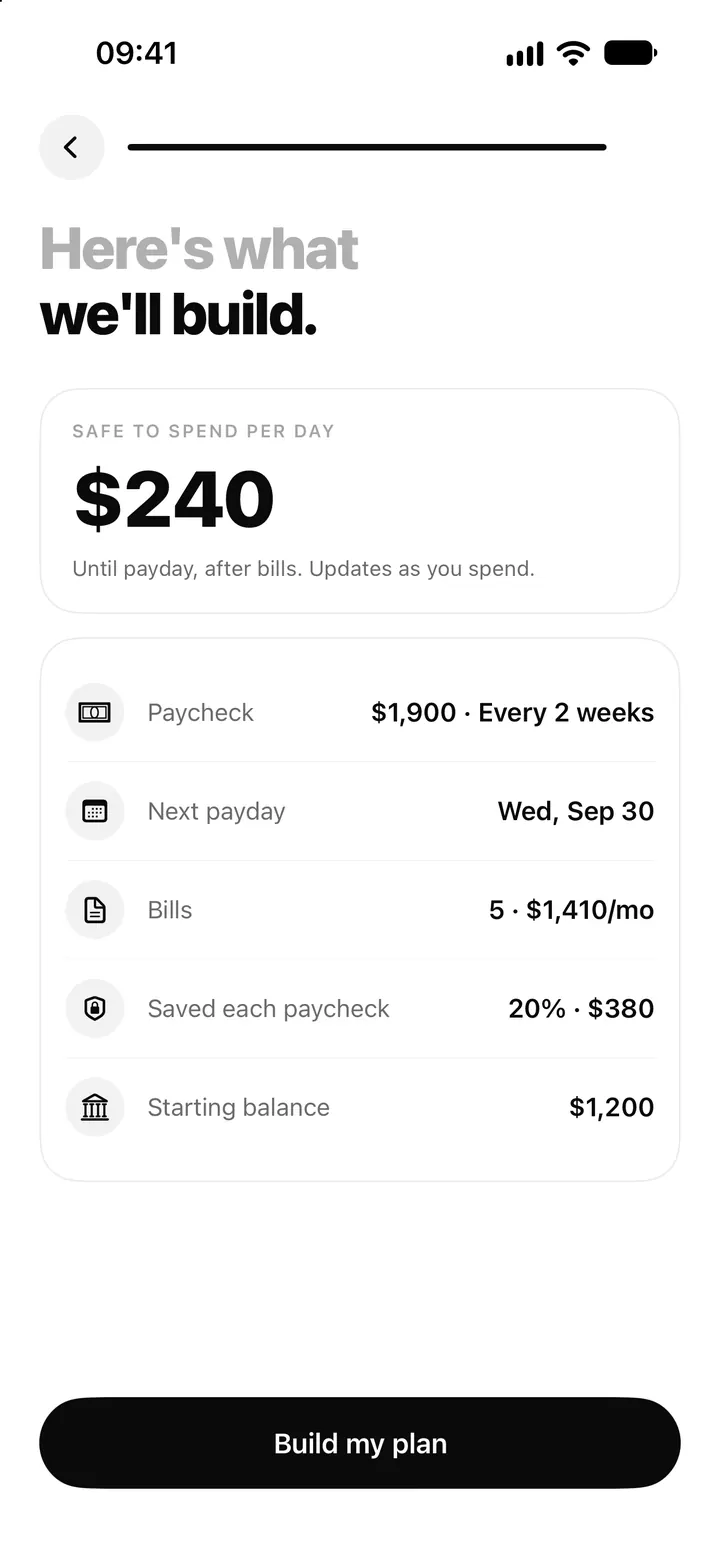
Set up a budget plan on iPhone: Flowjar's first-run setup, step by step
Flowjar builds your plan from a few questions: paycheck, payday, bills, balance and split. Here is every setup step, what you can skip and what to edit later.
Read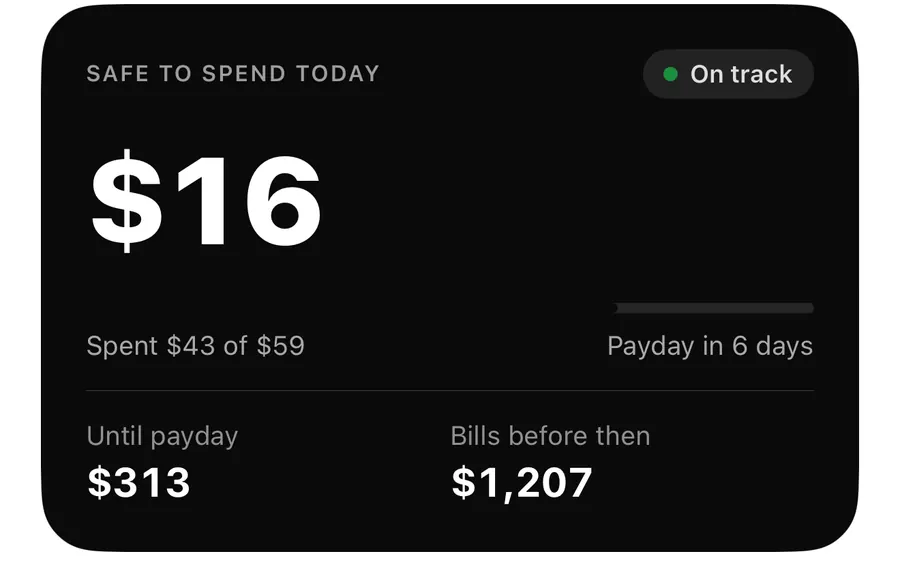
Quick add in Flowjar: log an expense in one line, like coffee 4.50
Type coffee 4.50 or +2000 salary into Flowjar quick add and it reads the amount, guesses the category from keywords and adds the entry in one tap on iPhone.
Read
Flowjar privacy: on-device data, Face ID lock and Erase all data
Flowjar keeps your entries, jars and bills on your iPhone with no account or bank login. See how Face ID lock, anonymous usage and Erase all data work.
ReadHow to Budget When You Use Multiple Currencies
Record income, bills and goals in multiple currencies, handle exchange-rate assumptions and avoid mixed totals in Flowjar.
Read guide