Set up a budget plan on iPhone: Flowjar's first-run setup, step by step
Flowjar builds your plan from a few questions: paycheck, payday, bills, balance and split. Here is every setup step, what you can skip and what to edit later.
Short answer
Flowjar sets up your plan by asking a short series of questions the first time you open it: language, currency, how often and how much you are paid, your next payday, your regular bills, what is in your account today and how to split each paycheck. At the end it shows a summary with your daily Safe to spend amount, then Build my plan creates four jars and your bills. There is no account to create and no bank to connect.
Most budget apps start with an empty screen and a lot of categories. Flowjar starts with the few numbers it needs to answer one question: how much can you spend today and still cover bills and savings until payday. This post walks through each setup screen so you know what to have ready and which answers matter most.
What to have ready
You need three numbers and one date. Close enough is fine for most of them, but the first two make the biggest difference to your daily number:
| You'll be asked for | Why it matters |
|---|---|
| What's in your account today | The balance everything else starts from. Checking plus cash you can spend; leave savings out. |
| Next payday | Safe to spend counts down to this date. |
| Each paycheck, after tax | What actually lands in your account. It drives the forecast and the jar split. |
| Your regular bills | Rent, phone, subscriptions and the like, with a rough amount and due day. |
The setup screens, in order
The welcome screen says Know what's safe to spend with a Get started button and a note that there is no account and no bank login. After that, each question gets its own screen with a progress line, a Back button and, where the question is optional, a Skip button.
Set up your plan
- Choose your language. Your device language is listed first. You can change it later in Settings.
- Which currency do you use? US dollars is the default, with your region's currency suggested next to it and a longer list below.
- What brings you to Flowjar? Pick one of Stop running out before payday, Save more every month, Pay off debt faster or See where my money goes.
- How often do you get paid? Choose Weekly, Every 2 weeks, Twice a month or Monthly.
- How much is each paycheck? Drag the ruler or use the plus and minus buttons. Enter the amount after tax.
- When's your next payday? Pick a date from today up to about two months ahead.
- Which bills do you pay? Tap the fixed ones from a grid: Rent, Electricity, Water, Internet, Phone, Streaming, Insurance, Gym, Loan, Credit card, Transit pass and Childcare.
- Roughly how much are they? Each bill starts with a suggested amount and due day. Change both to match your real bills.
- What's in your account today? Set your starting balance.
- How should we split each paycheck? Choose a split for your four jars.
- What should we call you? Your first name, used in the greeting on Today.
- Stay ahead of every bill. Tap Turn on reminders to allow notifications, or skip.
- Tap the back. Add in a second. A short guide to opening quick add with Back Tap. Tap Got it.
- Here's what we'll build. Check the summary and tap Build my plan, then See my plan.
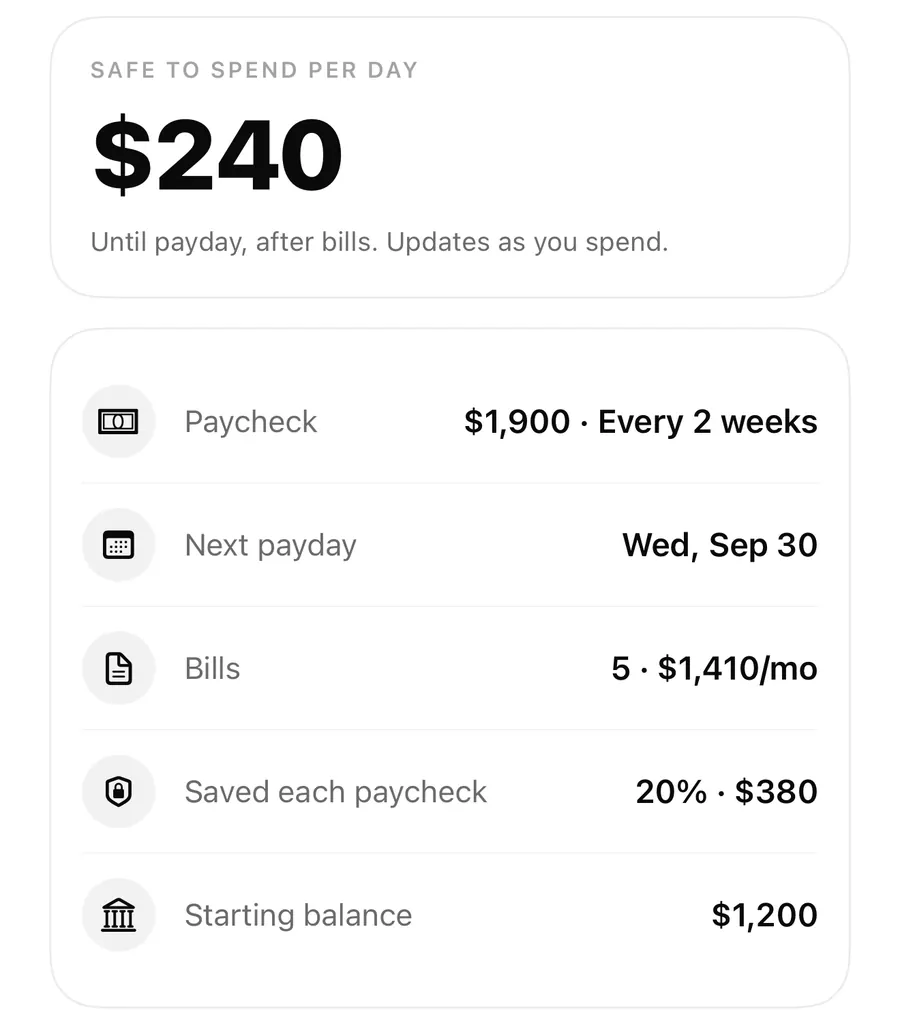
Choosing a split
The split screen shows three presets, each with a bar and the dollar amount per jar for your paycheck:
| Preset | Bills | Spending | Savings | Goals |
|---|---|---|---|---|
| 50 / 30 / 20 split (Recommended) | 50% | 30% | 10% | 10% |
| Pay yourself first | 45% | 25% | 20% | 10% |
| Keep it light | 55% | 35% | 10% | 0% |
Whichever you pick becomes the starting share of each paycheck for the four jars Flowjar creates: Bills, Spending, Savings and Goals. Money in Savings and Goals is kept out of Safe to spend, so a bigger savings share means a smaller daily number. You can fine-tune each jar later, in 5% steps; see money jars and the paycheck split.
What you can skip
The goal, pay frequency, paycheck, bills, name, reminders and Back Tap screens all have Skip. Skipping has consequences worth knowing:
- Skip pay frequency and Flowjar assumes you are paid monthly.
- Skip paycheck and no income is planned until you add one in Settings, so the forecast won't show paydays going up.
- Skip bills and you go straight to your balance. You can add bills any time from the bills tracker.
- Skip reminders and they stay off until you turn on Bill and payday reminders in Settings.
Language, currency, next payday, balance, split and the summary can't be skipped, because the daily number depends on them.
What happens when you tap Build my plan
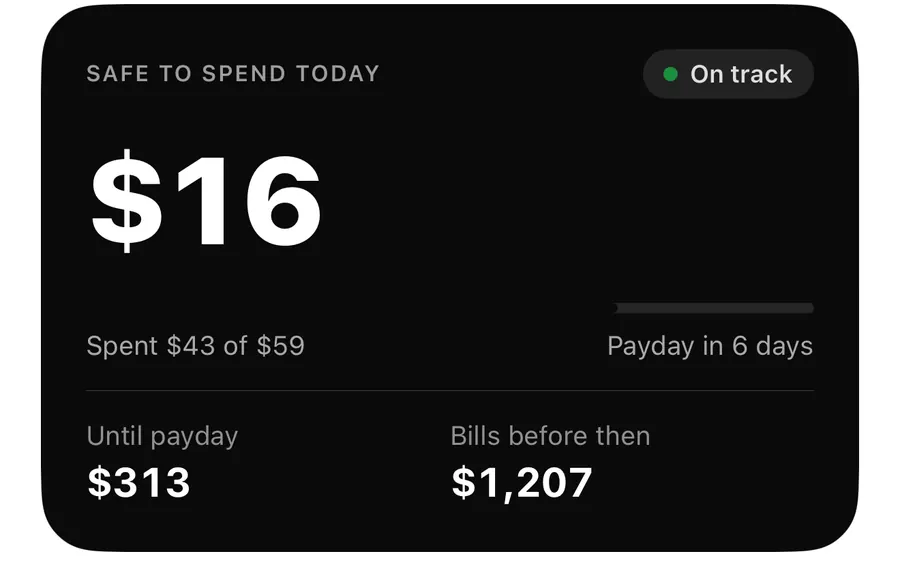
Flowjar shows a short Building your plan screen, then your first Safe to spend number with See my plan. Behind it, Flowjar saves your plan, creates the four starter jars with your chosen shares, and adds the bills you picked as monthly bills on their due days.
A moment later the Flowjar Pro screen appears. You can close it and keep using the free plan; nothing in setup depends on buying Pro.
What you can change later, and what you can't
Open Settings and look under Your plan. You can edit Name, how often you are Paid, the Paycheck amount, the Next payday date and the Split preset. The language and appearance are in Settings too.
Two things are fixed once setup is done:
- Currency. Settings shows it, but it can't be changed, and a plan uses one currency.
- Starting balance. It can't be edited. If it was off, add an income or expense entry for the difference so your balance matches your account.
Changing the Split preset in Settings does not rewrite your existing jars. To change how a paycheck is shared, edit each jar's share in the jar editor.
FAQ
Do I need an account or a bank login to set up Flowjar?
No. Setup only asks for numbers you type in, and the plan is stored on your iPhone.
What if I don't know my exact bill amounts?
Use a rough figure. The setup screen says close enough is fine, and you can edit each bill any time from the Bills screen.
I picked the wrong currency. Can I change it?
Not after setup. The currency is shown in Settings but can't be edited, so pick carefully on the currency screen.
Can I start again from scratch?
Yes. Erase all data at the bottom of Settings deletes all entries, jars and bills on the iPhone and can't be undone. See the support page if you are unsure.
Why did a Pro screen appear after setup?
Flowjar shows its Pro options once your plan is ready. You can close it; the free plan keeps working.
Download Flowjar and have your plan built in a couple of minutes.
Keep reading
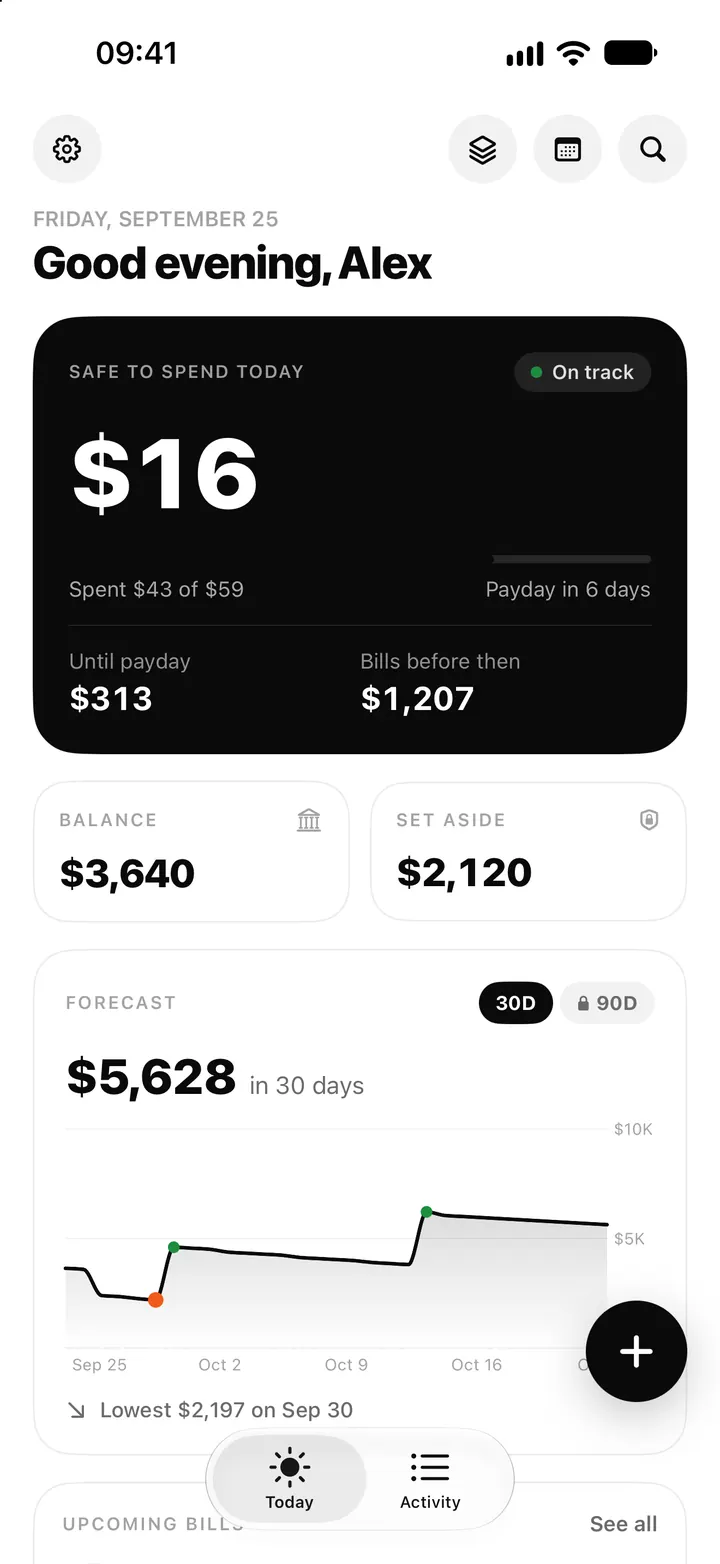
Safe to spend today on iPhone: how Flowjar works out your daily number
Flowjar takes your balance, sets aside savings and bills due before payday, and splits the rest over the days left. Here is how the Safe to spend number works.
Read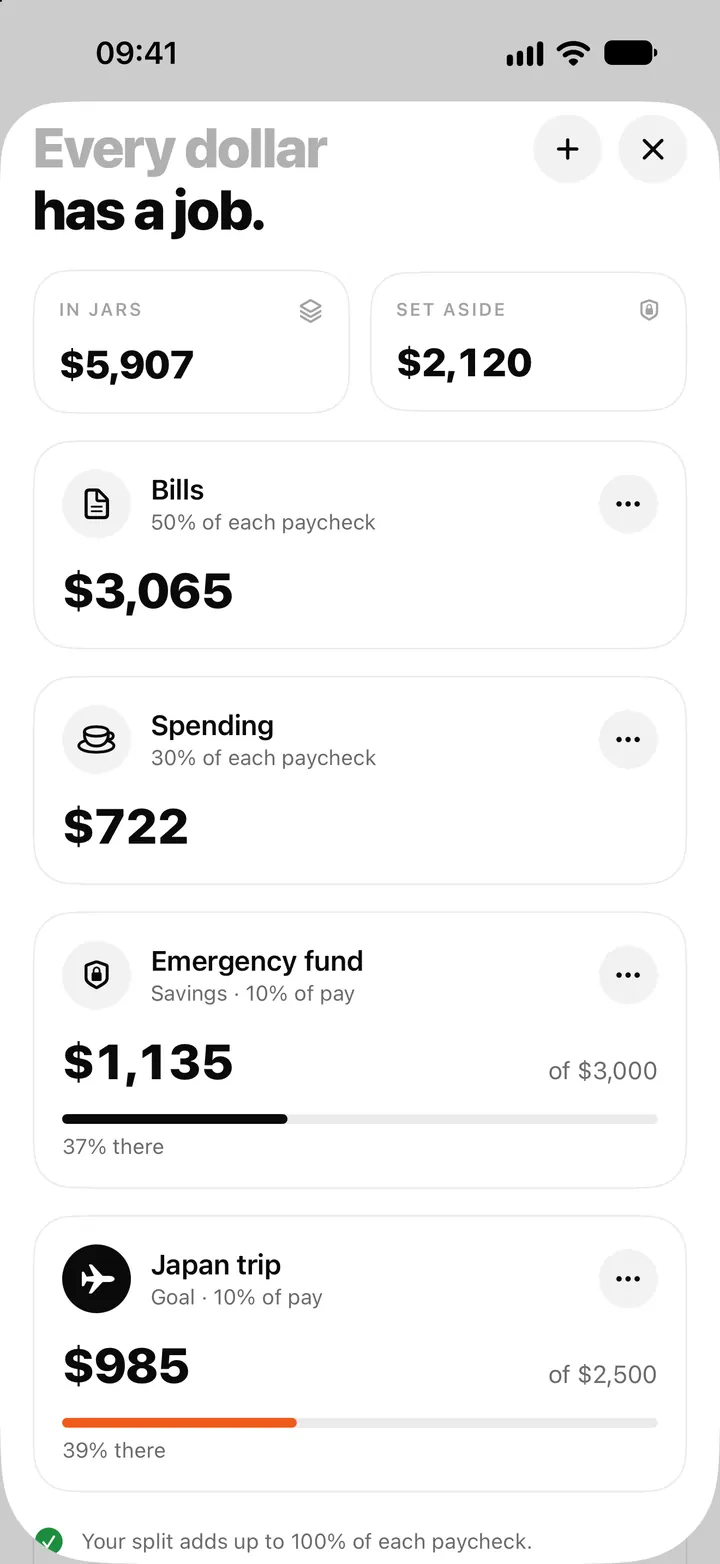
Money jars in Flowjar: split each paycheck into bills, spending and savings
Flowjar splits each paycheck across jars for bills, spending, savings and goals. Learn the four jar types, how shares work and what each does to Safe to spend.
Read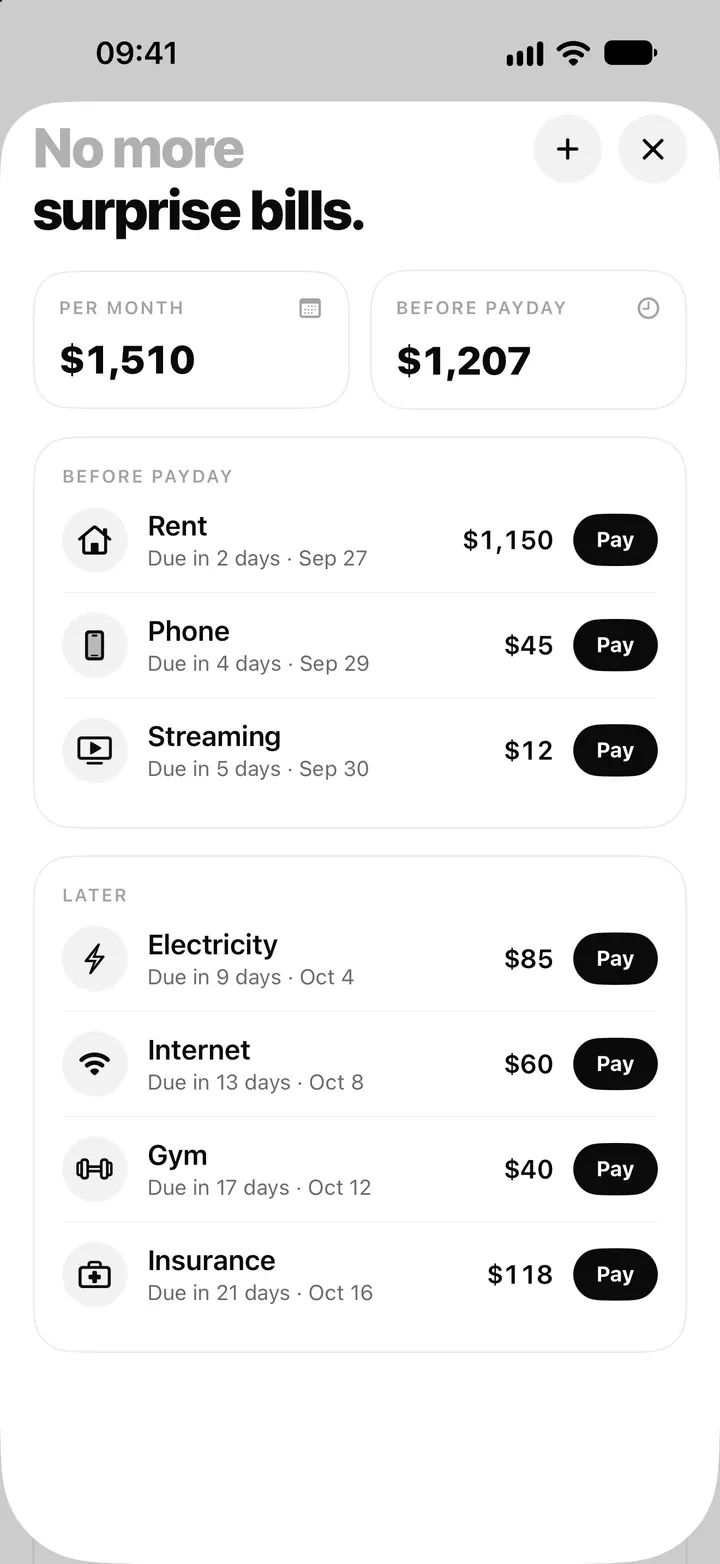
Bill tracker on iPhone: add bills, see what's due and tap Pay in Flowjar
Flowjar lists every bill by due date, before and after payday, and logs a payment with one tap on Pay, with Undo. Here is how the Flowjar bills tracker works.
ReadStart Flowjar in Two Minutes: A Minimal Budget Setup
Use a two-minute Flowjar routine to enter your balance, next income, bills and first safe-to-spend estimate.
Read guide