Bill tracker on iPhone: add bills, see what's due and tap Pay in Flowjar
Flowjar lists every bill by due date, before and after payday, and logs a payment with one tap on Pay, with Undo. Here is how the Flowjar bills tracker works.
Short answer
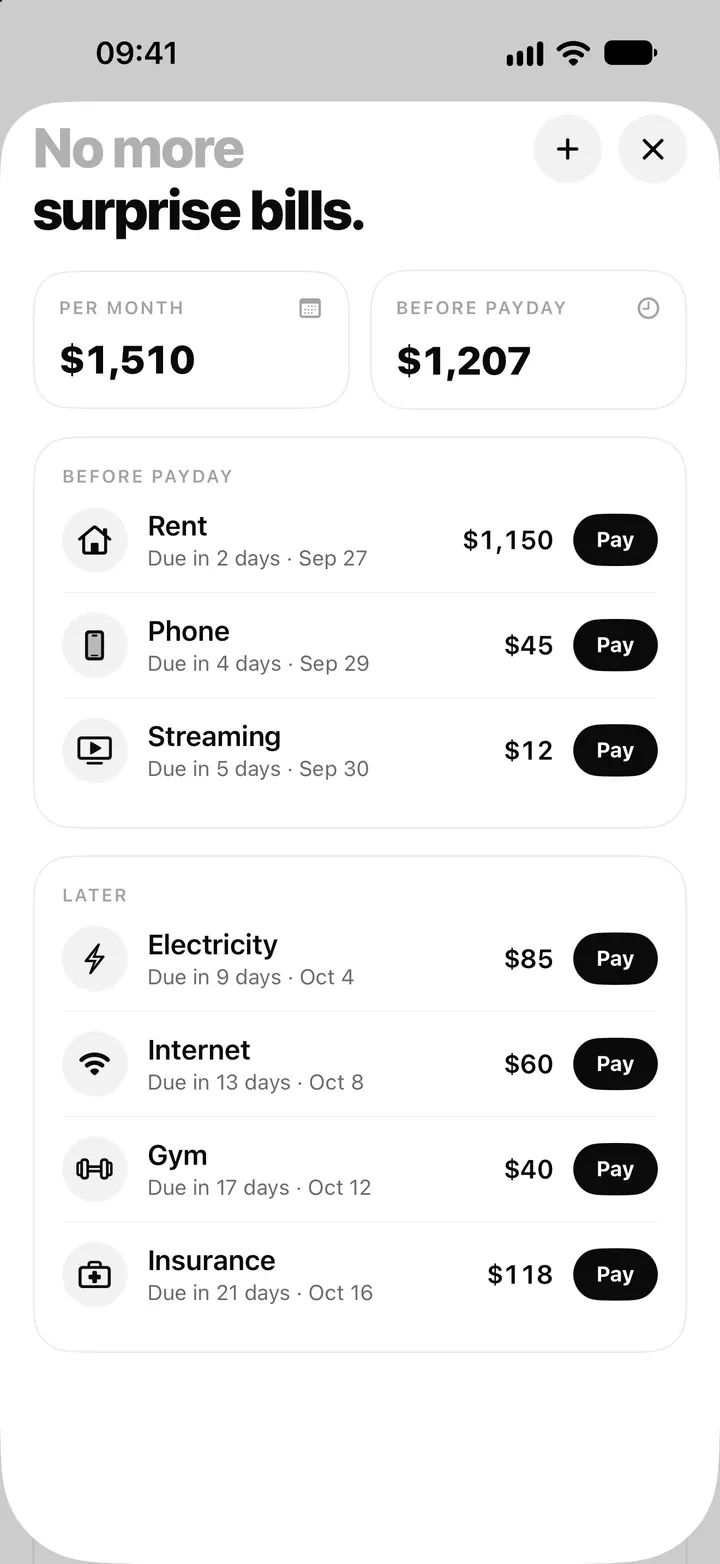
Flowjar's Bills screen lists each bill with its next due date, split into Before payday and Later. Two tiles show what your bills cost Per month and how much is due Before payday. When you pay a bill, tap Pay: Flowjar logs the payment, takes it from your Bills jar and moves the bill to its next due date. Tapped by mistake? Undo appears for a few seconds.
Bills are the part of a budget that doesn't move, which makes them the part that is easiest to forget. Flowjar keeps them in one list and takes every unpaid bill due before payday out of your Safe to spend number, so rent never looks like spending money.
Where to find your bills
On Today, tap the Bills button at the top, or See all on the Upcoming bills card. Bills opens as a sheet. If you prefer it as a tab, turn on Show all 4 tabs under Layout in Settings.
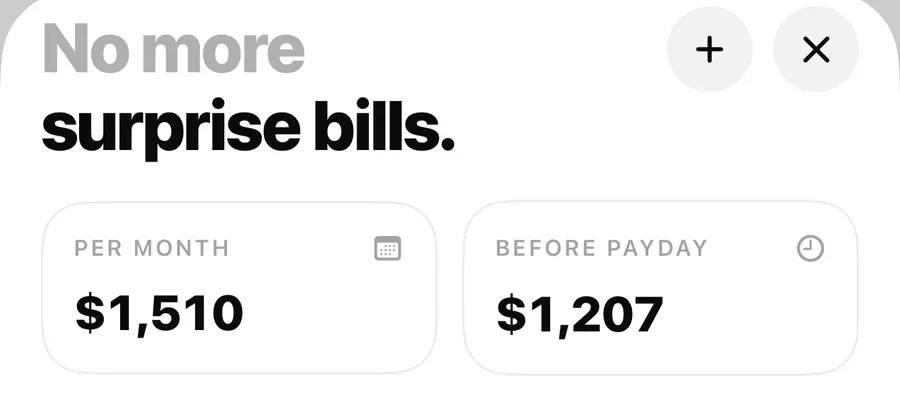
The screen is headed No more surprise bills and starts with two tiles:
- Per month is all your bills converted to a monthly figure. A weekly bill counts about 4.3 times, a yearly bill one twelfth.
- Before payday is the total of unpaid bills due before your next payday, including overdue ones. It is the same figure Today shows as Bills before then.
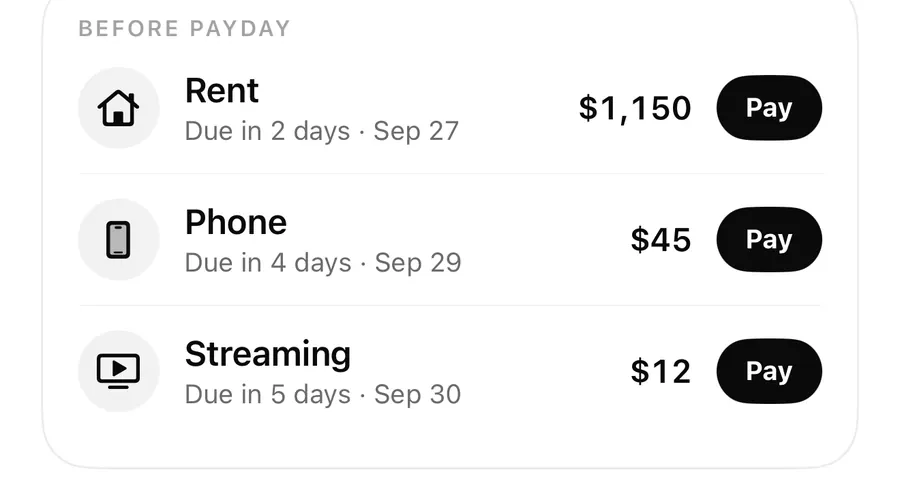
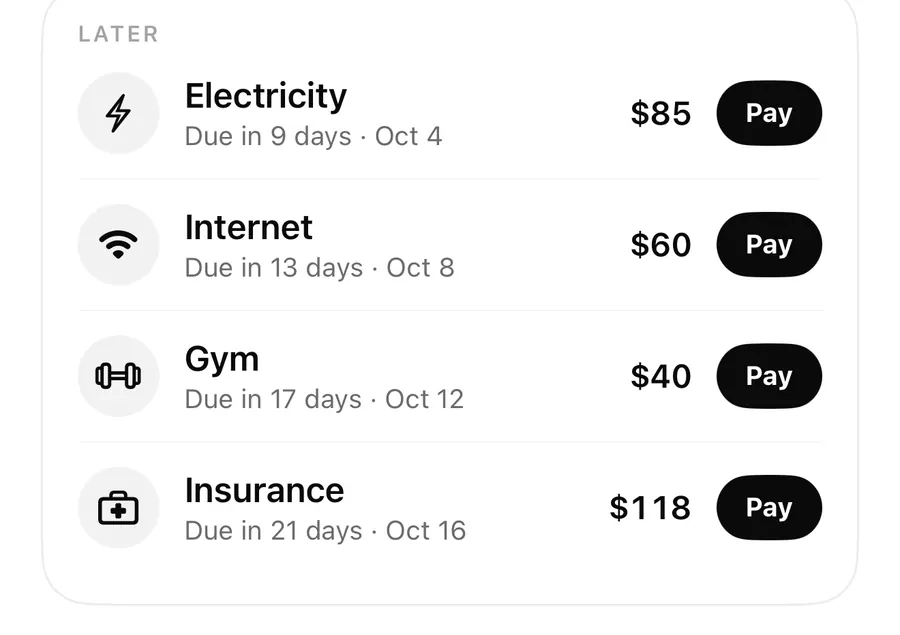
Below the tiles, bills are listed in two cards. Before payday holds every bill due before your next payday. Later holds the rest. Each row shows the name, the amount, a due label and a Pay button. The due label reads Overdue · date in red, Due today, Due tomorrow or Due in N days · date.
Adding a bill
Tap + at the top of Bills to open New bill.
Add a bill
- Tap a Quick pick to fill in the name and icon: Rent, Electricity, Water, Internet, Phone, Streaming, Insurance, Gym, Loan, Credit card, Transit pass or Childcare. Or type your own Bill name.
- Enter the Amount.
- Set Repeats to Weekly, Monthly or Yearly.
- Choose the Next due date. Later due dates follow from it.
- Leave Remind me the day before on if you want a notification, then tap Save.
Bills you picked during setup were created as monthly bills with suggested amounts. Those suggestions are only starting points, so check each one against your real bill. There is no every-two-months or quarterly option; for those, a yearly bill or a manual reminder works better. The guide on planning for yearly bills has ideas.
Paying a bill with one tap
When you pay a bill in real life, tap Pay next to it, on the Bills screen or in Upcoming bills on Today. Flowjar then:
- Adds an expense for the bill's amount, in the Bills category, with the bill's name as the note and today's date.
- Takes that amount from your Bills jar.
- Marks that due date as paid, so the bill moves to its next due date and drops out of Before payday and Safe to spend.
Undo, and fixing a payment later
After you tap Pay, the button turns into Undo for about four seconds. Tapping it removes the payment and puts the bill back on the same due date.
Missed the window? Open Activity, find the payment and swipe to Delete. If it was the bill's most recent payment, that due date becomes unpaid again. Deleting an entry is permanent, so check it is the right one. The Activity post covers editing and deleting entries.
Editing or deleting a bill
Long-press a bill on the Bills screen to open Edit bill. You can change the name, amount, repeat and next due date, or turn the reminder off. If you change how it repeats or its next due date, the bill starts again from the new date.
Delete bill asks you to confirm. Past payments stay in your activity, so your spending history doesn't change.
How bills feed the rest of Flowjar
- Safe to spend subtracts every unpaid bill due before payday. See how the daily number works.
- The forecast takes each unpaid bill out on its due date, repeating by schedule. See the 30 and 90-day forecast.
- Reminders can notify you at 9:00 the day before a bill is due. See bill and payday reminders.
FAQ
What happens if I tap Pay before the due date?
Flowjar records the payment with today's date and marks the upcoming due date as paid, so the bill moves on to the following due date.
Does Pay work if I deleted my Bills jar?
Yes. The payment is still logged as an expense in the Bills category. It just isn't taken from a jar.
Can I see past bill payments?
Yes. Each payment is an expense entry in Activity, with the bill's name as the note, and you can search for it by name.
Why did a bill show as Overdue?
Its due date has passed and it hasn't been marked paid. Tap Pay if you paid it, or edit the bill if the date is wrong.
Download Flowjar and put every bill on one list before the next one is due.
Keep reading
Bill reminders on iPhone: Flowjar's day-before and payday notifications
Flowjar can remind you at 9:00 the day before each bill is due and on payday. How to turn bill and payday reminders on, set them per bill, and what they do.
Read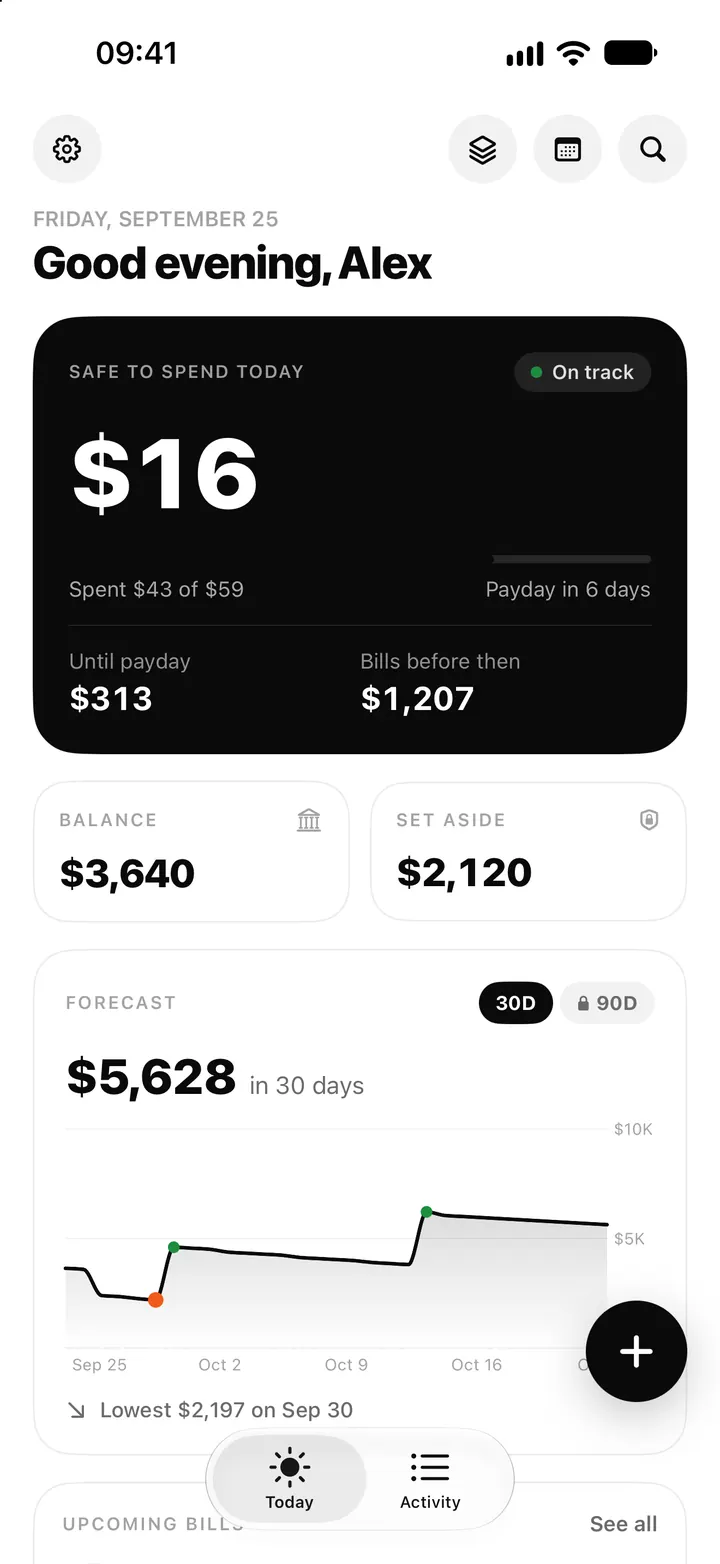
Safe to spend today on iPhone: how Flowjar works out your daily number
Flowjar takes your balance, sets aside savings and bills due before payday, and splits the rest over the days left. Here is how the Safe to spend number works.
Read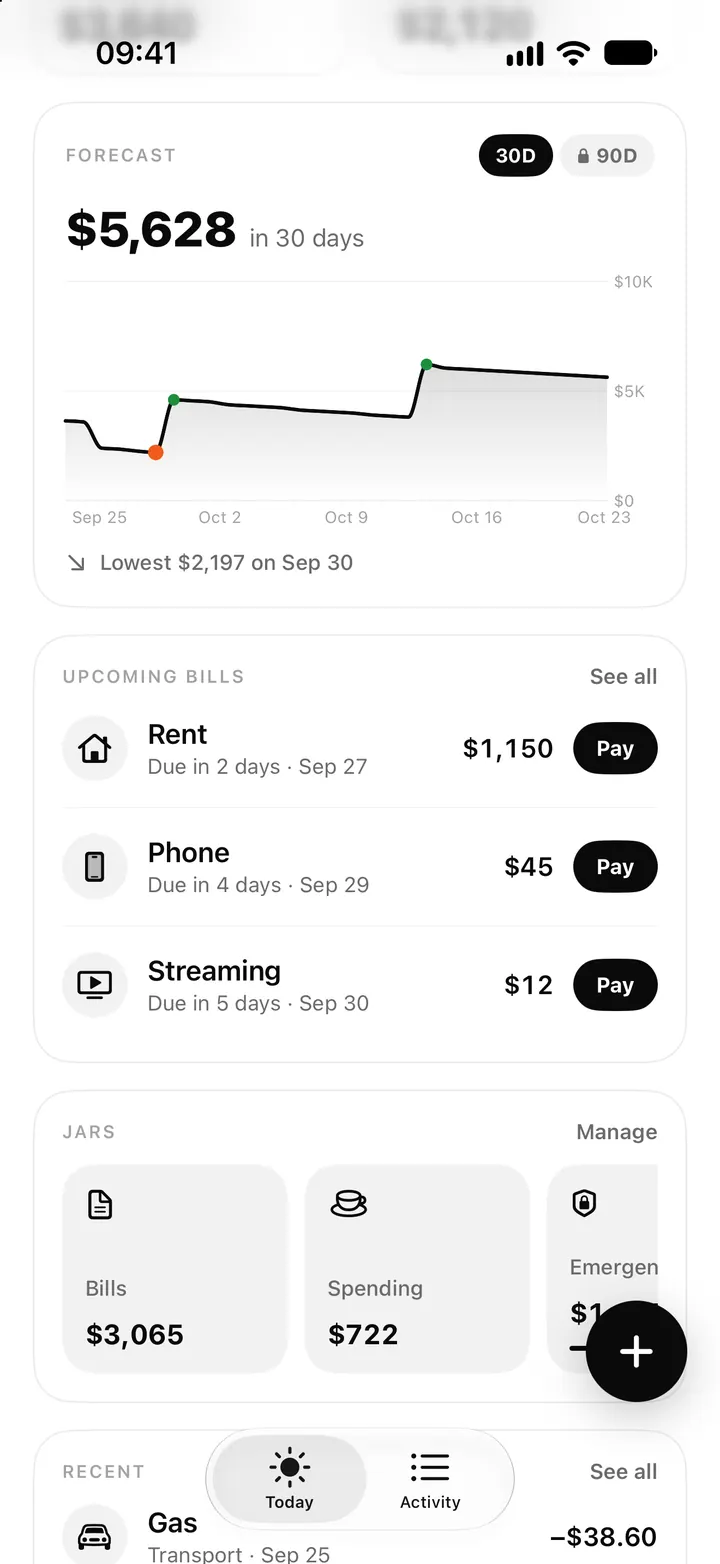
Cash flow forecast on iPhone: how Flowjar projects 30 and 90 days
Flowjar projects your balance day by day from paydays, bills and your usual spending. See how the 30 and 90-day forecast works and how to read the lowest point.
ReadHow to review bills before payday
A practical pre-payday bill review covering due dates, automatic payments, buffers and cautious Flowjar forecasting.
Read guide